
Knowledge base
Save documents, web pages and notes alongside your meetings, search all of it by meaning, and pin the pieces Zoe should always know
The knowledge base is where your workspace's meetings and saved resources become searchable by meaning, not just keyword. Add a web page, a document or a note, search across everything from one box, and pin the resources Zoe should have in front of her in every chat.
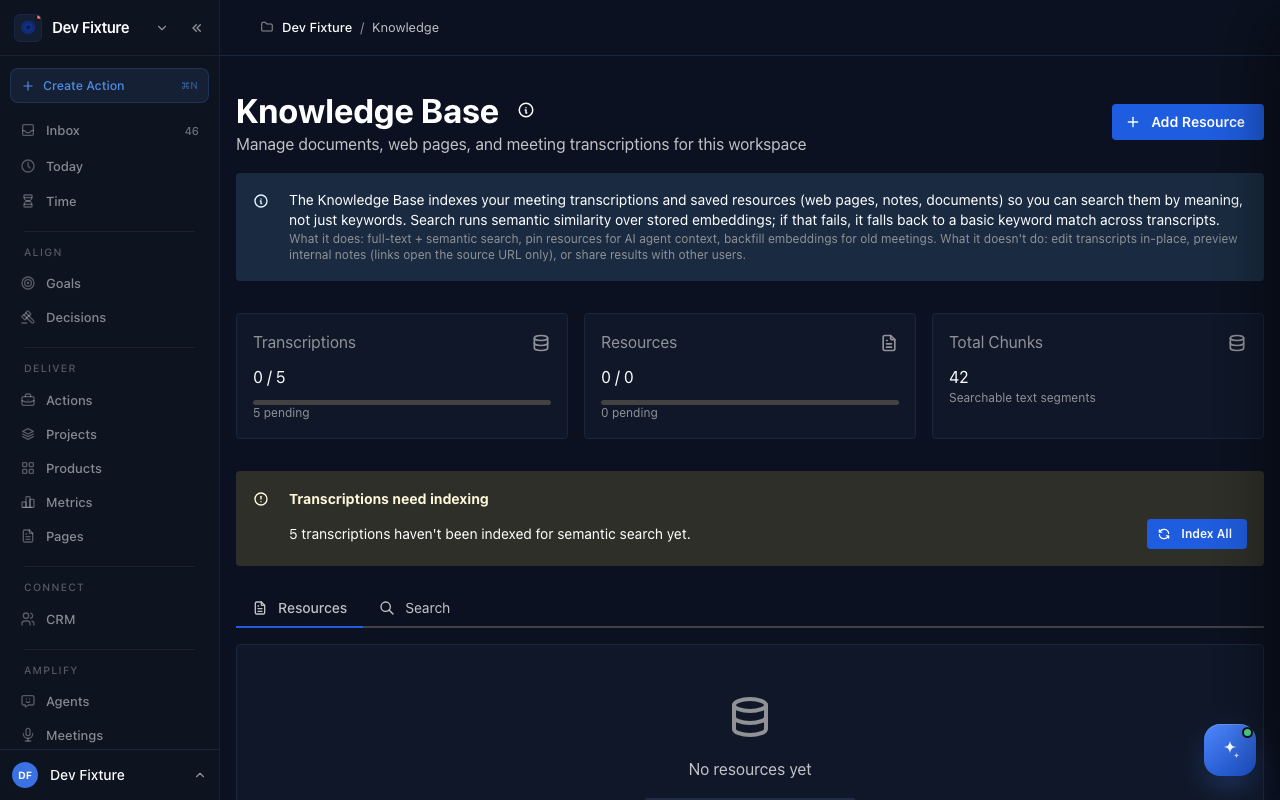
Where to find it
Amplify → Knowledge in the sidebar (/knowledge-base). Inside a workspace you see that workspace's content; open it outside a workspace and results span every workspace you belong to. Either way you only see content you added yourself — other members' resources are not visible to you.
How to add a resource
- Click Add Resource (top right).
- Give it a Title and pick a Type: Web Page, Document, Note or Bookmark.
- For a web page or bookmark, paste the URL. For a document or note, paste the text into Content.
- Add a Description if you like, then click Add Resource.
The resource appears in the Resources tab with its type, word count and when it was added.
How to make meetings searchable
Each meeting is indexed for search once. If some are still waiting, a Transcriptions need indexing notice shows how many.
- Click Index All. The notice changes to Indexing in progress... and works through the backlog.
- When it reads Indexing Complete, the Transcriptions count at the top shows nothing pending and those meetings are searchable.
Resources are indexed as you add them. If one's results look wrong, open its row menu and choose Regenerate embeddings.
How to search
- Open the Search tab and type at least three characters. You need to be inside a workspace to search.
- Results list meetings, pages and resources together, each with a match percentage.
- Click a meeting to open its recording, or a page to open it in the workspace. A web page or bookmark opens its source URL in a new tab; notes and documents without a URL appear in the results but do not open anywhere.
Search matches on meaning first and falls back to plain keyword matching on meetings if nothing else comes back.
How to pin a resource for Zoe
Pinned resources are included in every agent chat, so Zoe answers with them in context.
- In the Resources tab, click the pin icon on the resource's row (Pin to inject into every agent chat).
- The Context column shows it as pinned. Click the pin again to unpin.
How it connects
-
Local wiki — the desktop-only, on-disk counterpart that never syncs here: Desktop app & Local wiki.
-
Pages — documents you or Zoe write are indexed here too: Pages.
-
Zoe, your assistant — pinned resources are what Zoe reads before answering.
-
Fireflies — meetings recorded through Fireflies are searchable here once indexed.
-
Chrome extension — recordings made in the browser are meetings too, so they show up in search.
Tips
- Pin sparingly. A handful of reference documents gives Zoe better context than everything you own.
- Use a Note for the things you keep re-explaining to Zoe — your team's naming conventions, the current quarter's priorities.
FAQ
Can I upload a PDF? Not from this page. Paste the text in as a Document instead.
Can I edit a meeting transcript here? No. The knowledge base only indexes meetings; edit the transcript from the meeting itself.
Can teammates see my resources? No. Each person sees only what they added, even inside a shared workspace.
What do the three numbers at the top mean? Transcriptions and Resources count what is indexed, with anything still pending shown underneath. Total Chunks is how many searchable segments they were split into.