
Meetings
Every recorded, imported or hand-written meeting in one place, with a summary, the actions and decisions it produced, and who was there
A meeting is a conversation that happened: its transcript, an AI summary, the people who took part, and what came out of it. Meetings arrive from Fireflies automatically or you add them by hand, and each one can be turned into actions in a project and decisions in the Decision Log. A future booking is a scheduled meeting, made with Schedule meeting, and is a different thing.
Where to find it
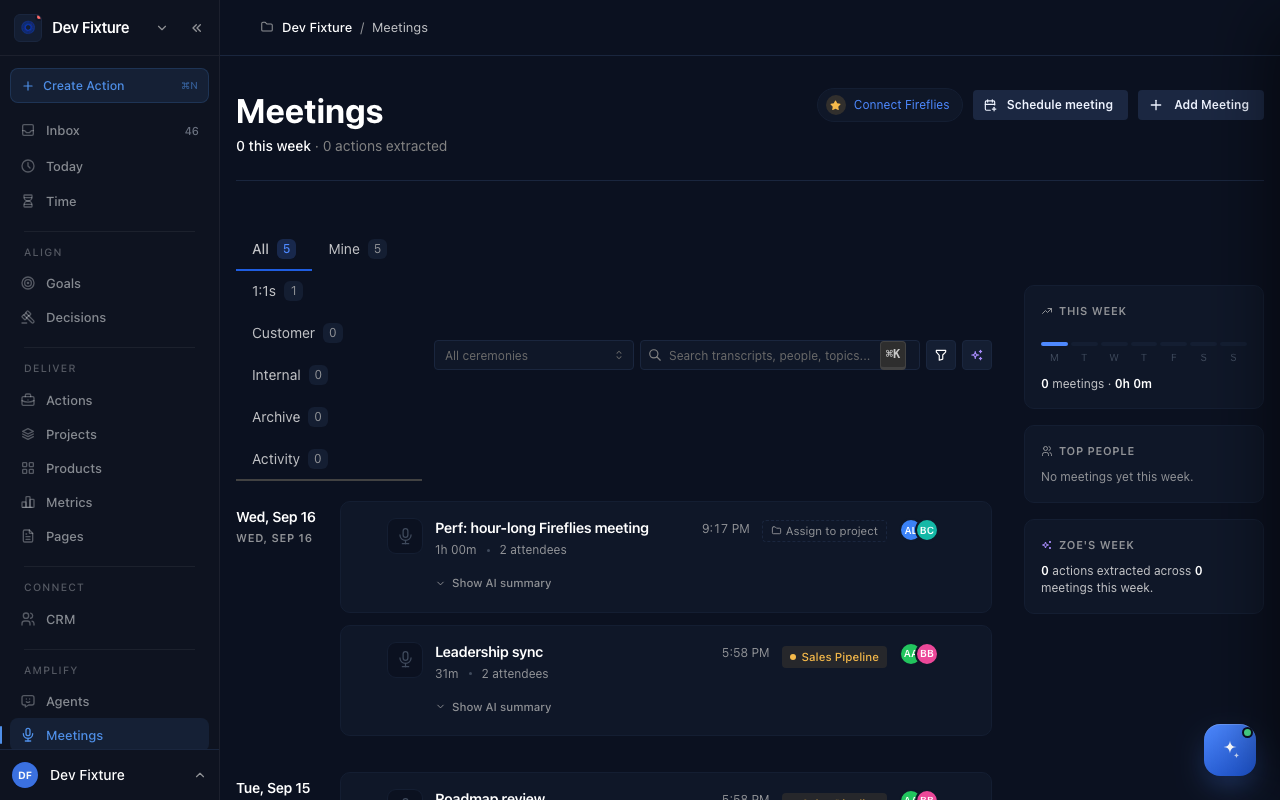
Amplify → Meetings in the sidebar, or Meetings across all your workspaces. Each meeting opens on its own page.
How to read the list
The header counts this week's meetings and the actions extracted from them. Tabs filter the list: All, Mine (meetings you own or attended), 1:1s, Customer, Internal, Archive, and Activity (what Fireflies has sent recently). Search the box above the list for transcripts, people and topics, or narrow by ceremony.
Each card shows the date, duration, participants and the linked project, with two shortcuts: Assign to project (or the project's name once it has one) and Show AI summary.
How to add a meeting by hand
Use this for meetings Fireflies did not record: pasted notes, a transcript from another tool, a call you took on paper.
- Click Add Meeting.
- Fill in Title and Meeting Date; a Description is optional.
- Paste the Transcript, or write Notes (Markdown), or both.
- Add Participants (teammates, CRM contacts, or new people by name and email), pick a Project, and link a Ceremony occurrence or Features if the meeting belongs to one.
- Drop Images to attach screenshots or photos; they appear on the meeting's Screenshots tab.
- Save. The meeting appears in the list and Zoe writes a summary when you open it.
How to work with one meeting
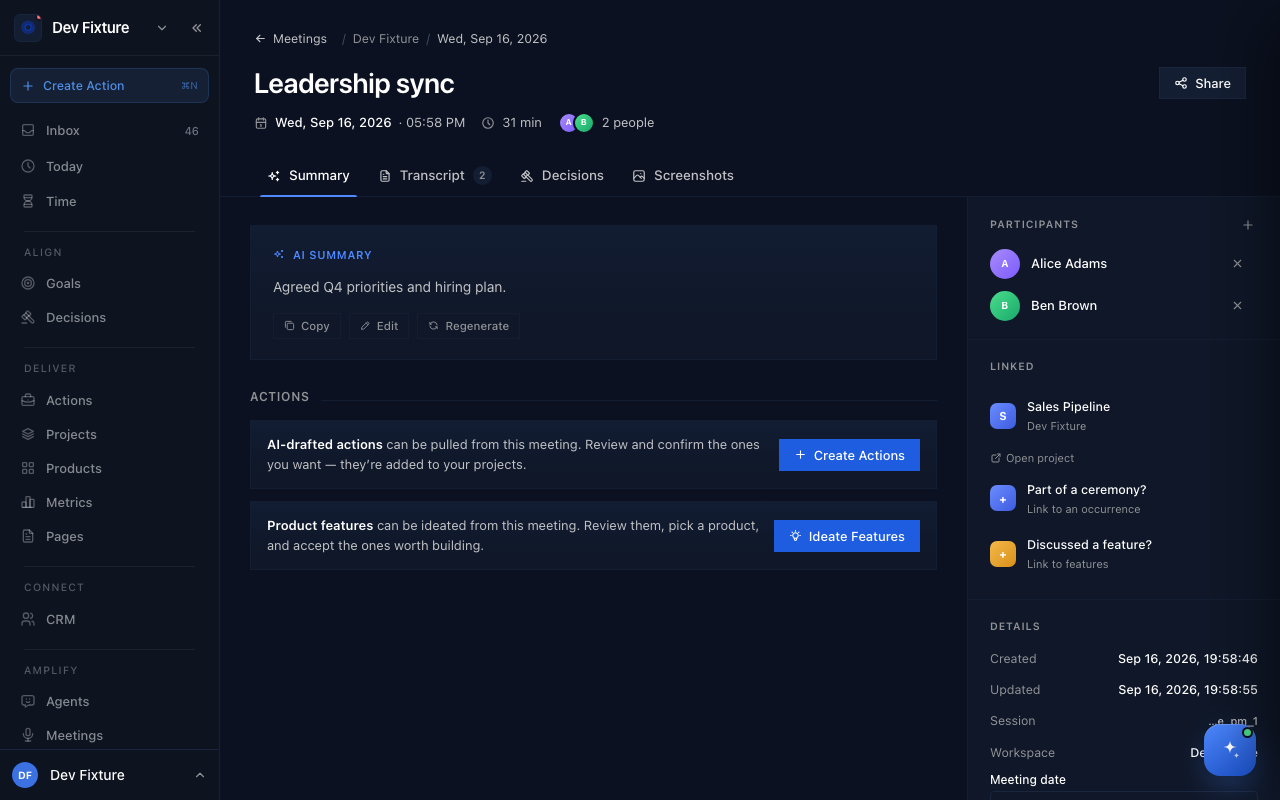
A meeting page has four tabs and a side rail.
- Summary — the AI summary (Copy, Edit, Regenerate), then two blocks: Actions, where Create Actions drafts actions from the transcript for you to review, and Product features, where Ideate Features proposes features for a product.
- Transcript — the full, speaker-attributed transcript with search; Export transcript in the rail downloads it.
- Decisions — the decisions and open questions logged from this meeting. Extract decisions & questions asks Zoe to draft them from the transcript; drafts are confirmed or rejected here and reach the Decision Log only once confirmed.
- Screenshots — images attached to the meeting.
The rail holds Participants (add or remove people; talk-time shows when the transcript has speakers), Linked (the project, with Open project; Link to an occurrence for a ceremony; Link to features), Details, and the actions Share with team (copies the link), Export transcript and Archive meeting.
How to turn a meeting into actions
Nothing is created without your review.
- Assign the meeting to a project (from the card's Assign to project or the rail's Linked block).
- On the Summary tab click Create Actions. Zoe drafts actions from the transcript.
- Edit or delete each draft, then confirm the ones you want. They are added to the project and show up on Today or in the project's board like any other action.
If the meeting already has actions, Create Actions tells you so instead of drafting duplicates.
How to log the decisions
- Open the Decisions tab and click Extract decisions & questions.
- Review the drafts with Zoe: confirm the real decisions, reject the rest. An open question is a decision with status Open.
- Confirmed decisions appear in Align → Decisions with the quote from the transcript they came from.
You can also log a decision by hand from the same tab.
How to archive or delete
Archive meeting in the rail moves a meeting to the Archive tab, where it can be restored. Deleting is permanent and available from the list.
How it connects
-
Access — who can see a meeting follows its project: Members, roles & access.
-
Fireflies — the automatic way meetings arrive: Fireflies.
-
Actions and Projects — where confirmed actions go: Actions, Projects.
-
Decisions — confirmed decisions live in the Decision Log: Decisions.
-
Ceremonies — a recurring meeting's occurrence can be linked from the rail: Ceremonies & occurrences.
-
Zoe — the summary, drafted actions, features and decisions are all hers to draft and yours to confirm: Zoe.
-
Knowledge — transcripts are searchable from the Knowledge base.
FAQ
The summary is empty or wrong. Click Regenerate on the Summary tab, or Edit to write your own.
Create Actions found nothing. The transcript has no action-like statements, or it is too short. Add notes with the follow-ups and try again.
Who can see a meeting? Members of its workspace; a meeting in a restricted project follows that project's access list. Share with team copies the link for people who already have access.
Can I schedule a meeting from here? Schedule meeting books a future meeting with workspace members and sends calendar invites; it does not create a recorded meeting. See Calendar & scheduling.