
Zoe, your assistant
Chat with Zoe to plan your day, find things and get work done — from the Agents page, the Ask Zoe drawer or the command palette
Zoe is the assistant built into Exponential. Ask her what to focus on today, get a project broken down into actions, or think something through — and tag a specialist agent with @ when you need one. Zoe works with you in a conversation and acts as you, with your confirmation.
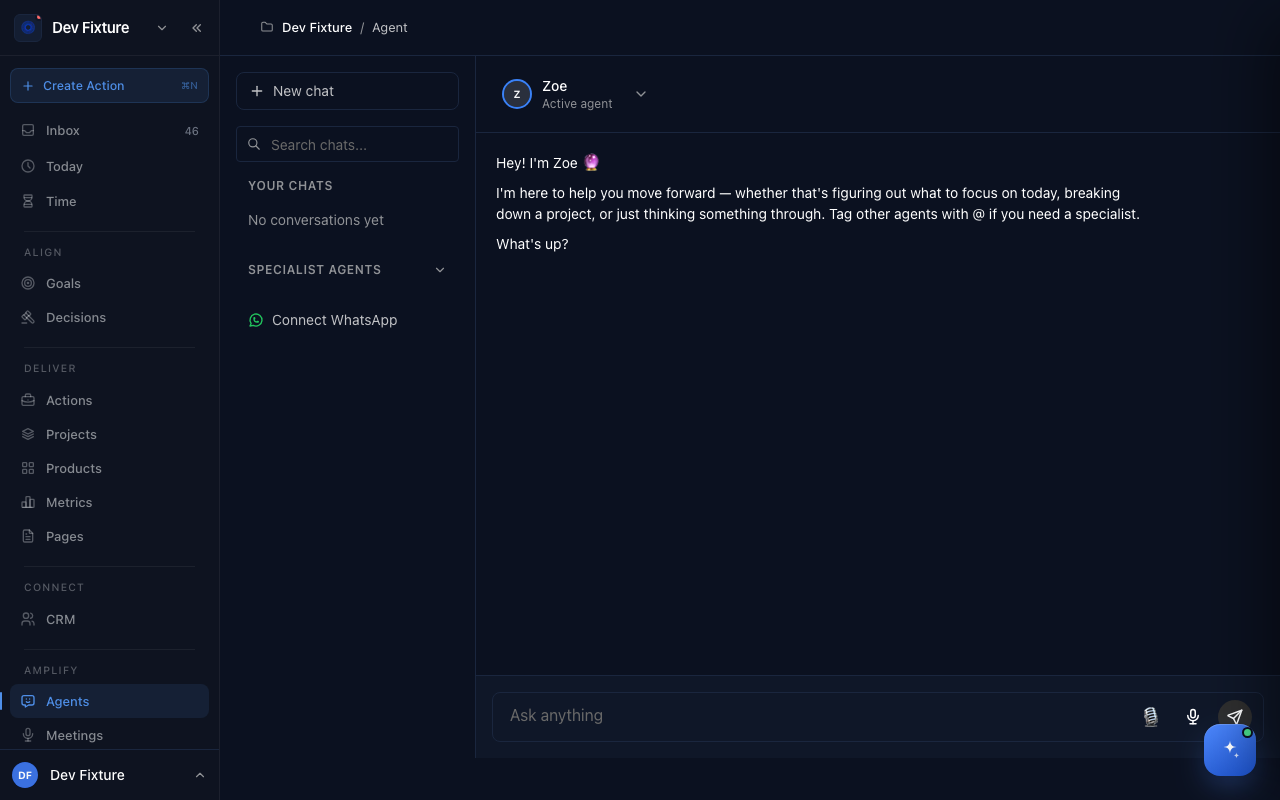
Where to find it
Zoe is available three ways:
- Amplify → Agents in the sidebar (/agent) — the full chat page, with your chat history and the specialist agents.
- The Ask Zoe · ⌘J button in the bottom-right corner of every page, which opens the Zoe drawer beside whatever you are working on. Press ⌘J to toggle it and Esc to close it.
- The command palette (⌘K) — pick the Ask Zoe mode and the drawer opens.
You can also message Zoe from your phone — see Chat gateways.
How to start a chat
- Open Amplify → Agents in the sidebar.
- Click New chat. Zoe greets you and asks what's up.
- Type in the Ask anything box and press Enter, or click the microphone to speak instead of typing.
- Earlier conversations are listed under Your Chats. Use Search chats... to find one and click it to pick up where you left off.
How to use a specialist agent
Specialist agents handle narrower jobs than Zoe. They are listed under Specialist Agents in the left column of the Agents page.
- Start your message with
@and the agent's name — a list appears as you type. - Write the rest of the message and send it. That message goes to the specialist instead of Zoe.
- Messages without an @mention go to Zoe. You can also switch with the Active agent menu at the top of the chat.
How to use the Zoe drawer
The drawer keeps Zoe alongside the page you are on, so you can ask about what is in front of you.
- Click Ask Zoe · ⌘J (bottom right) or press ⌘J.
- Type in the box at the bottom. The header says whether you are in a New thread or a Resumed thread.
- Click History to reopen one of your Recent Conversations, or New thread to start fresh.
- Use the width toggle to make the drawer wider or narrower, or Maximise to open it as a full modal. Click the agent name in the header to switch between your assistant and a specialist.
How to give Zoe a name and personality
- Open Settings → AI assistant.
- Enter a Name and pick an Emoji — this is how your assistant introduces itself everywhere, including the drawer and WhatsApp.
- Describe the personality you want in the text box and save.
How it connects
-
Keyboard shortcuts — ⌘J for the drawer and the palette's Ask Zoe mode: Keyboard shortcuts.
-
Knowledge base — pin a resource there and it is included in every chat, so Zoe answers from your own documents and meetings.
-
Chat gateways — message Zoe from your phone; the Connect WhatsApp button on the Agents page starts the setup.
-
External agents — for software that should act under its own name rather than yours.
-
Settings → AI history — every message you have exchanged with Zoe, searchable and filterable by platform.
Tips
- Rate a reply with the stars under it. A short note on what would have made it better improves future answers.
- Ask for the outcome, not the mechanics: "plan my afternoon around the launch" gets a better answer than "list my actions".
FAQ
Is Zoe the same as Paddy? Paddy no longer exists. There is one assistant, Zoe, plus specialist agents you can @mention and external agents you connect yourself.
Does Zoe do things without asking? No. Zoe acts as you, inside the conversation, and confirms before creating or changing things. Software that should work on its own, under its own name, is an external agent.
Where do my chats live? Under Your Chats on the Agents page and under History in the drawer. The full log is in Settings → AI history.
Can Zoe read my meetings and documents? What is in your knowledge base. Pin a resource there to have it in every chat.