
Weekly plan
Set the week across every workspace in one pass — choose what is in focus, check in on key results, re-rank projects — then drill into each workspace and share a team check-in
The Weekly plan is a guided review you run once a week. It walks across every workspace you belong to in four phases: pick which workspaces are in focus and give each a theme, check in on the quarter's key results, sort projects into Top focus, Active and Backlog, and finish with a summary that links into each workspace's own weekly plan. Each finished week adds to your streak, and past weeks are kept in a history.
Where to find it
Open /weekly-plan. It is not in the sidebar or the user menu; the Rituals cards on your home dashboard link to it as Portfolio Review, and the Habits page has a Weekly Plan card. Past weeks are at /weekly-plan/history.
How to run the review
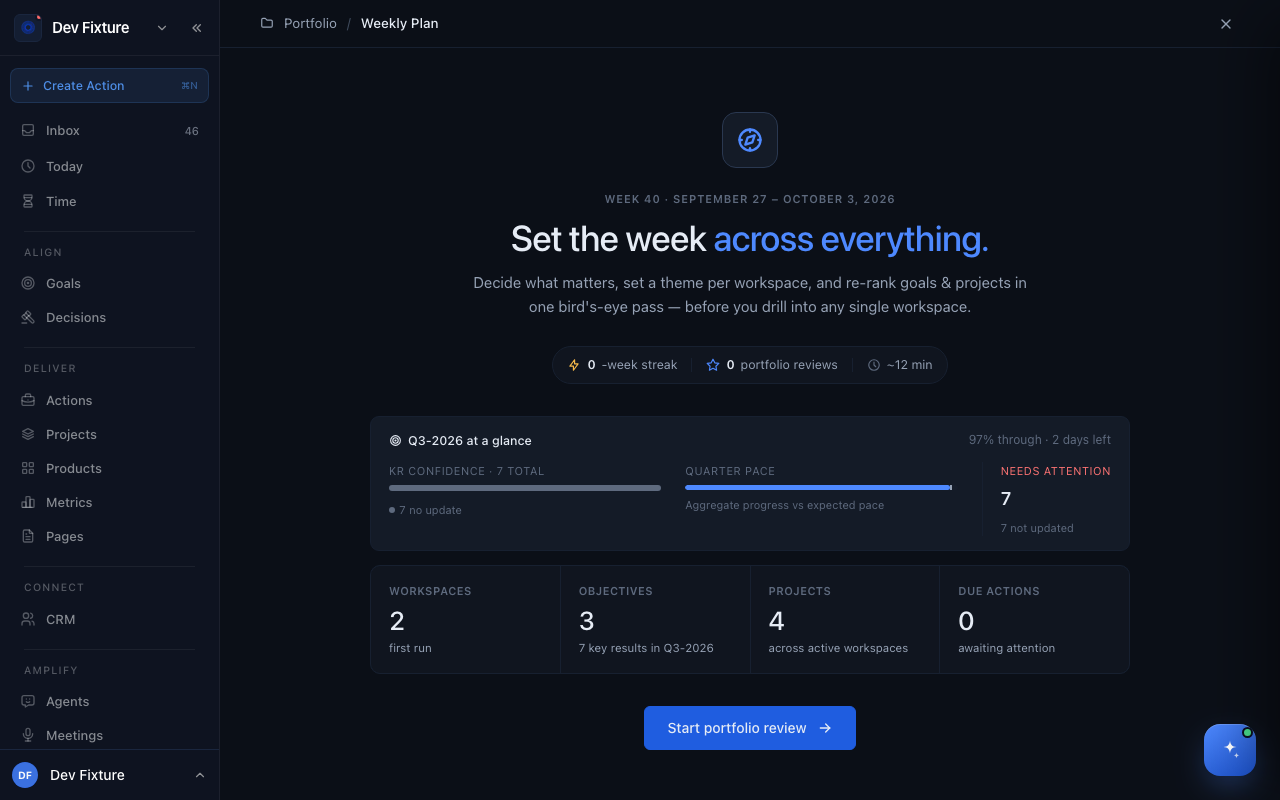
- The intro shows the week, your streak, KR confidence and Quarter pace for the current quarter, and how many workspaces, objectives, projects and due actions you have. Click Start portfolio review.
- Phase 1 · Triage workspaces — click Bring into focus on each workspace you will actually work in this week and type a Theme ("What does winning this week look like?"). Click Mark dormant to drop one. Dormant workspaces stay visible but do not surface in the later phases. Click Continue.
- Phase 2 · Re-rank objectives — pick a workspace tab and a quarter. Expand an objective to see its key results. Click Focus on to make a key result this week's focus, and click its current value (for example 3/10) to type a new one, which logs a check-in. Create goal and Add key result are there if something is missing. Click Continue.
- Phase 3 · Prioritize projects — every project from your in-focus workspaces sits in one of three tiers: Top focus (at most 5), Active and Backlog. Use the Top, Active and Backlog buttons on a row to move it; this changes the project's priority everywhere, not just here. Filter with the workspace chips. If projects linked to a focused key result are not in Top focus, a banner offers Promote all. Click Finish review.
- Phase 4 · Drill in — the summary reads "Portfolio set for the week." with your streak and a Drill into a workspace list. Each entry opens that workspace's own weekly plan in a new tab. Click Done — back to home when you are finished.
Close the review with the X at the top right at any time. Focus choices, themes and check-ins save as you make them, and reopening the page resumes where you stopped.
How to review one workspace
Each workspace has its own weekly plan, reached from the drill-in list, the Weekly Plan ritual card on the home dashboard, or the card on the Habits page. It goes through the workspace's active projects one at a time, least healthy first:
- Choose Quick Sweep or Full Review and a timer (10 min, 15 min, 25 min or No limit).
- For each project, update Status and Priority, read the derived Health, capture a next action, update linked key results, and note what changed since last week.
- Finish to record the week and extend that workspace's streak.
How to share a team check-in
Each workspace also has a Weekly Team Check-in page, linked from the Rituals cards on the home dashboard. It lists the workspace's active projects with Status, Priority and a read-only column of their actions, and it is what you share with a team.
- Click Sharing Settings and switch on each organization team that may see your plan, or click Enable All Teams. Only teams marked Organization Team in their team settings appear here.
- Back on the check-in page, Weekly Plan Sharing shows Shared with a copyable link per team. Team members find it on the team's Weekly Plans tab.
- To post it to Slack, click Send to Slack, pick the integration and channel, and confirm. The button is disabled until the workspace has a Slack integration.
How it connects
- Goals and OKRs — Phase 2 reads the quarter's objectives and writes key-result check-ins.
- Projects — Phase 3 sets project priority; the per-workspace plan sets status too.
- Teams — organization teams receive shared check-ins.
- Habits — the weekly plan counts as a weekly ritual with its own streak.
- Journal — reread the week's days before you set next week's theme.
FAQ
Do I have to review every workspace? No. Only the workspaces you bring into focus appear in phases 2 and 3.
What counts toward the streak? Clicking Finish review in a given week. The per-workspace plan keeps a separate streak.
Can I change something after finishing? Yes. Reopen /weekly-plan and use the phase bar at the top to jump back to any phase.
Where did weekly commitments go? The check-in no longer has its own commitments list. Set focus key results in Phase 2 and Top-focus projects in Phase 3 instead.