
Daily plan
A six-step routine that turns what is due into a day you can actually finish, with times on a grid and a written plan at the end
The daily plan is a short routine you run once a day, for today or for tomorrow: pick the work, estimate how long each piece takes, fill the rest of the day from your existing actions and calendar, put it in priority order, lay it on a time grid, and write it up. The result is what Today shows as planned, and the daily summary and the home page banner nudge you until it is done.
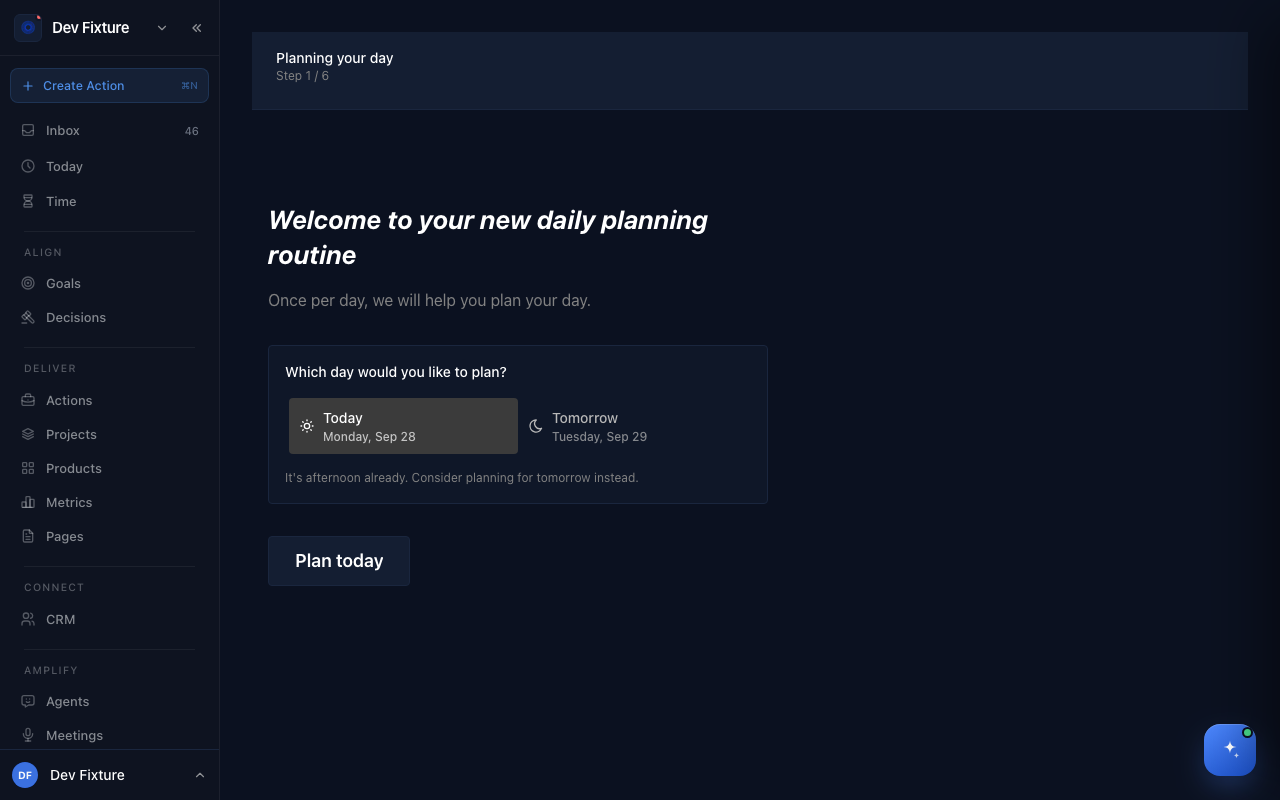
Where to find it
Daily plan, the Plan button at the top right of Today, and the Plan tab of the bottom bar on a phone. The Daily Plan Banner feature in workspace settings shows a reminder on the home page while the plan is unfinished.
How to plan a day
The wizard has a welcome step and six numbered steps (Fill task list and Prioritize share a screen); you can go back at any point.
- Which day? Choose Today or Tomorrow. In the afternoon it suggests planning tomorrow instead. Click Plan today (or tomorrow).
- Add a task. Name one thing you want to work on and click Add, or pick from the panel of existing actions that are overdue or due today. What you pick appears under Planned for today.
- Estimate timing. Set the time you plan to spend on each item. The total is compared with your work hours, and the plan says Over capacity when it does not fit.
- Fill task list and Prioritize (one screen). Create more actions, or pull in work from your existing tools: import calendar events for the day, or add actions from Notion. Drag the list into the order you will work it, and drag anything that will not fit to a later day to defer it. Press A to open the add box, Esc to close it.
- Schedule. Drag items onto the day's time grid to time-block them between your work hours (set under Settings → Profile), or skip this step. Get Suggestions asks for AI Scheduling Suggestions for anything still unscheduled and lets you apply them in one go.
- Document. A summary card of the plan plus a place for Obstacles in my way; this is what you share or come back to. Finish, and Today reflects the plan.
A plan belongs to its date. Reopen the wizard the same day to adjust it; the next day starts a new one.
How it connects
- Today — where the planned, scheduled actions show up with their times: Inbox & Today.
- Time tracking — the plan is the intent; the timer and time entries record what happened: Time tracking.
- Calendar — imported events and the day's timeline come from your calendars and feeds: Calendar & scheduling.
- Notion — the Notion importer needs a connected Notion account: Notion.
- Routines — the startup routine covers mindset and reflection; the daily plan covers the schedule: Routines.
- Notifications — the daily summary lists the day's actions in your channels: Notifications.
FAQ
Do I have to do all six steps? No. Adding one action and finishing is a valid plan; the later steps are there when the day needs shaping.
Can Zoe plan the day for me? Ask her ("plan my day") from the Zoe drawer; she uses the same actions and calendar. The wizard is the hands-on version.
Where did my plan go? Plans are per date. Open Daily plan and choose the same day; yesterday's plan is not shown, but the actions it scheduled keep their times.