
Inbox & Today
Capture actions into the Inbox, then work from Today with overdue items, tomorrow and the days ahead in view
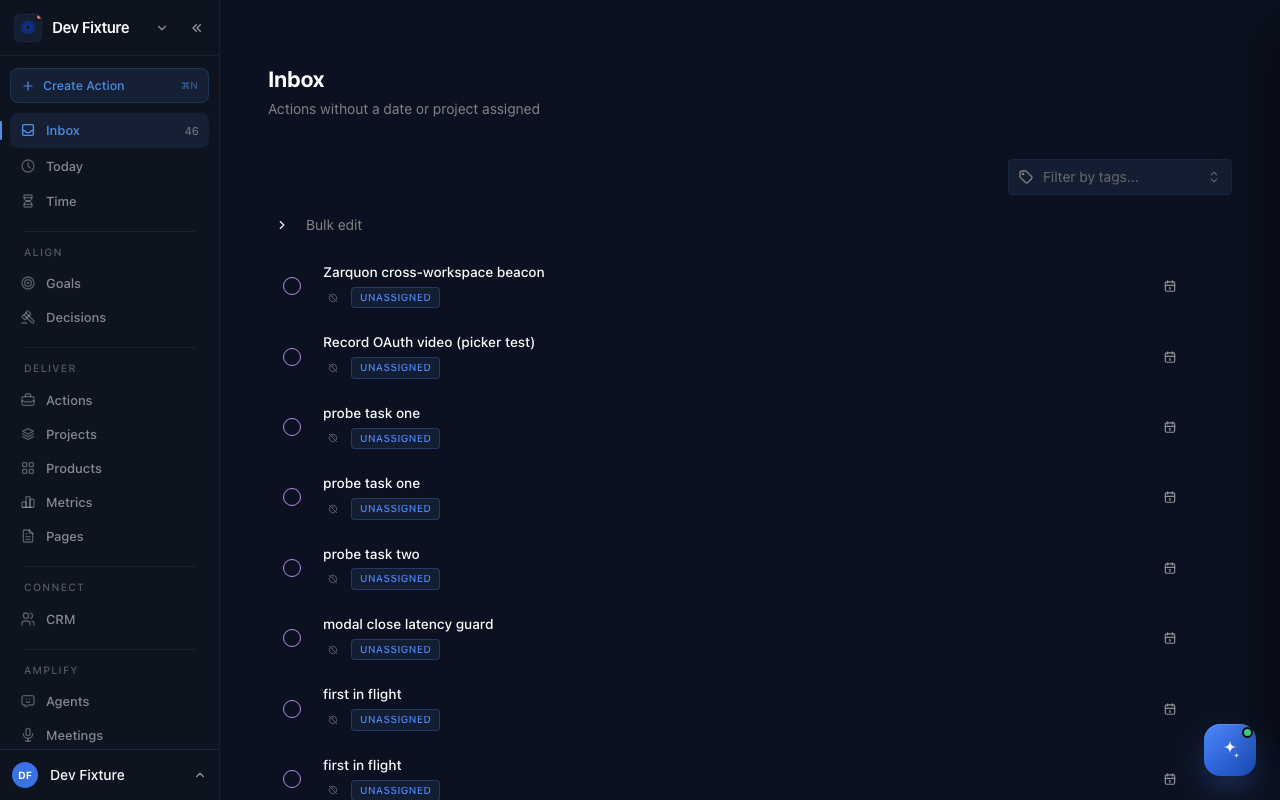
Inbox and Today are the two views you open every day. Inbox holds every action that has no date and no project yet, so nothing you capture gets lost. Today shows what is due today and what is overdue, beside your calendar, with Tomorrow and Upcoming a tab away.
Where to find it
Open Inbox or Today — they are the first two items in the sidebar, above Time. The Inbox count in the sidebar is the number of actions waiting there. Upcoming is a plain list of what is scheduled after tomorrow; the Upcoming tab on Today shows the same actions grouped by day.
How to clear the Inbox
An action lands in the Inbox when it has no due date, no scheduled time and no project. It leaves as soon as you give it any of those.
- Click an action to open it.
- Set a due date, or pick a Project, or both.
- Click Save changes. The action moves to Today, Upcoming or its project.
To handle several at once, click Bulk edit, tick the actions, then Reschedule them to a date, Move them to a project, or Delete them. Use Filter by tags… to work through one tag at a time. When the Inbox is empty you get a small celebration.
How to work from Today
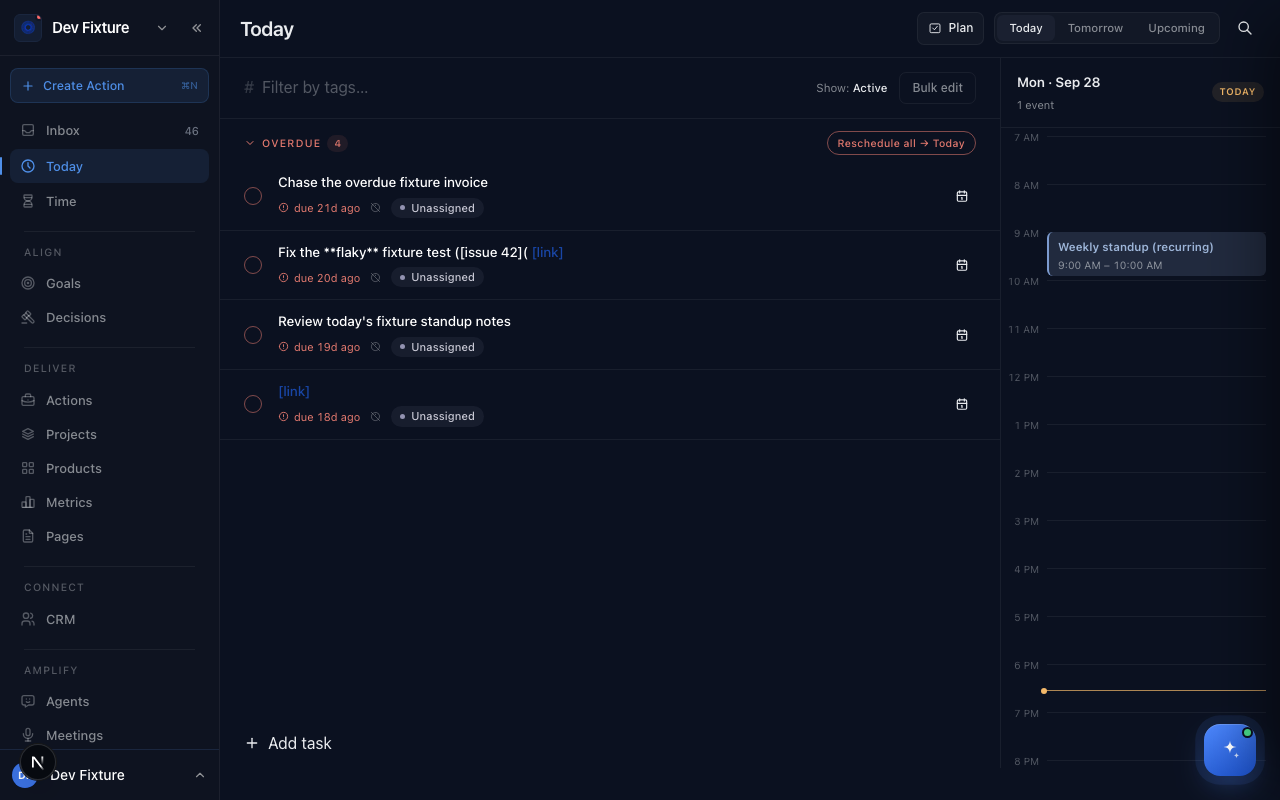
- Open the Overdue section at the top. Each row shows how long ago it was due. Click Reschedule all → Today to pull everything into today, or click the calendar icon on a row to reschedule just that one.
- Work down the list. Tick the circle to complete an action; it stays visible as done for the rest of the day.
- Click Add task at the bottom to capture something new with today's date.
- Click Plan at the top to open the daily plan, and the score ring for your Daily Productivity Score.
The rail on the right shows today's calendar events from a connected calendar (see Integrations). Switch to Tomorrow or Upcoming with the tabs at the top right; Upcoming groups actions by day. Filter by tags… and Bulk edit work here too, and Exit bulk returns to the normal list.
How it connects
-
Daily plan — the Plan button's six-step routine that fills Today: Daily plan.
-
Calendar — the events in Today's rail come from your connected calendars and feeds: Calendar & scheduling.
-
Actions — everything in these views is an action; the workspace board under Deliver → Actions shows the same actions by status.
-
Projects — assigning a project is the usual way out of the Inbox; each project's Tasks tab shows only its own actions.
-
Routines — the startup routine and wind-down are built around clearing the Inbox and reviewing Today.
-
Weekly plan — pick the week's actions from Upcoming when you plan.
Tips
- Capture first, sort later. Anything you add without a date or project goes to the Inbox, so Create Action (⌘N) from anywhere is safe.
- Overdue actions that were created together are grouped, so you can reschedule a batch that came from one meeting in one click.
FAQ
Why is an action with a due date not in my Inbox? The Inbox only holds actions with no date and no project. A dated action is on Today or Upcoming; a project action is on its project's Tasks tab.
Is there a "this week" or "this month" view? Not as separate tabs. Upcoming groups everything after tomorrow by day.
Can I reschedule overdue actions to a date other than today? Yes. Use the calendar icon on a row, or Bulk edit → Reschedule to pick any date.