
Actions
Create actions with priorities, dates and projects, and move them across a kanban board from Backlog to Done
An Action is the unit of work in Exponential: one thing to do, with a priority, an optional due date and an optional project. Actions flow through the Inbox and Today, sit on project boards, and can be grouped into Epics and sprints. A few UI labels still say "task" — the Add task button on Today, the Projects & Tasks tab, the Tasks entry in the command palette — they all mean actions.
Where to find it
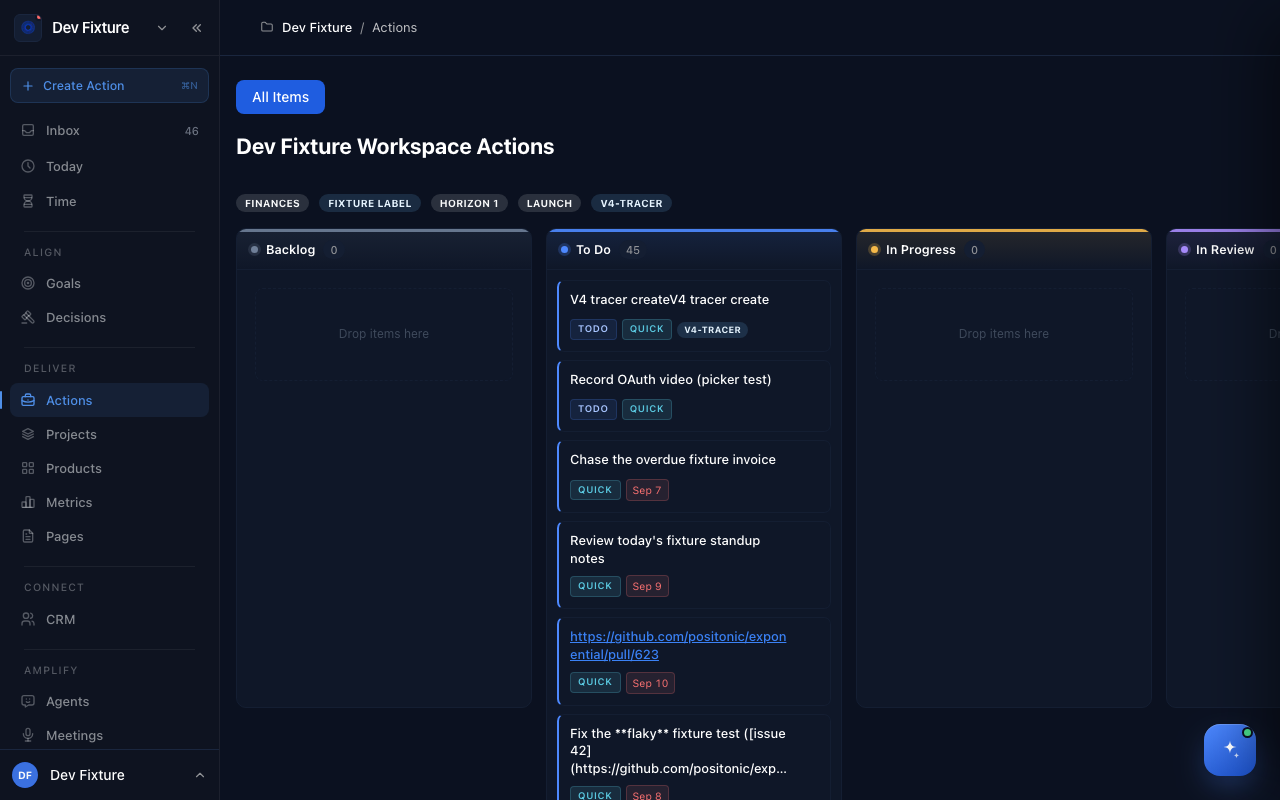
Deliver → Actions in the sidebar opens the workspace board. Actions also appear on Inbox, Today, Upcoming and each project's Tasks tab. Create one from anywhere with the Create Action button (⌘N) above the sidebar items.
How to create an action
- Click the Create Action button above the sidebar items, or press ⌘N.
- Type the Task name, and a Description if it needs one.
- Set a Priority, a due date, a project, tags and an assignee as needed.
- If Advanced Action Features is on, the next row offers Sprint, Epic, Effort and Blockers.
- Click New action.
To change an action later, click it, edit, and click Save changes.
How to use priorities
There are eleven priorities. 1st Priority to 5th Priority order the important work. The rest describe a kind of action rather than a rank: Quick (a few minutes), Scheduled (tied to a time), Errand (tied to a place), Remember (reference), Watch (something to monitor) and Someday Maybe (not now).
How to work the board
The workspace board opens on the All Items view.
- Switch between the kanban and list layouts with the view toggle, and choose a Group by.
- Open Filters to narrow by project or status.
- Drag a card between Backlog, To Do, In Progress, In Review, Done and Cancelled. Dropping a card on Done completes the action; dragging it back out reopens it.
How to use the advanced features
These need Advanced Action Features, which a workspace owner or admin turns on under workspace settings → Features (see Workspace settings).
- Epic — group the action under a larger initiative. See Epics.
- Sprint — assign it to a cycle. Cycles are created under a product's Cycles page with New cycle, which needs the Product Management plugin.
- Effort — size the work in story points, t-shirt sizes or hours. The method is chosen once per workspace under Features.
- Blockers — pick the actions that must finish first. A blocked action shows a Blocked chip until its blockers are done.
How it connects
-
Keyboard shortcuts — ⌘N to create an action, ⌘K to find one: Keyboard shortcuts.
-
Inbox & Today — where actions are captured and worked day to day.
-
Projects — a project's Tasks tab is a board of its own actions.
-
Epics — larger initiatives made of several actions.
-
Time tracking — time entries are logged against actions.
-
Notion — a project synced with Notion gets Sync with Notion and Refresh from Notion buttons on its action list.
-
Chrome extension and iOS shortcut — capture actions from outside the app.
Tips
- Keep 1st to 5th Priority for the handful of things that matter this week; everything else can be Quick or Someday Maybe.
- Reserve the due date for real deadlines. An action with no date and no project waits in the Inbox instead of nagging you on Today.
FAQ
Are tasks and actions different things? No. "Action" is the product's word; the few buttons that say "task" are labels that have not caught up.
Can several people be assigned to one action? The assignee picker on the form supports it, and each assignee sees the action on their own Today.
Where did a completed action go? Into the Done column of its board. It stays on Today as done until the day ends.