
Pages
Free-form documents that stand on their own, written by you or by Zoe, searchable by her, and publishable to the web
A page is a document that is not tied to a day, a meeting or a product: a spec, a brief, a wiki page, a set of notes. Pages belong to a workspace, can attach to a project, can be published to the web, and are indexed so Zoe can read and cite them. Zoe can also write pages for you.
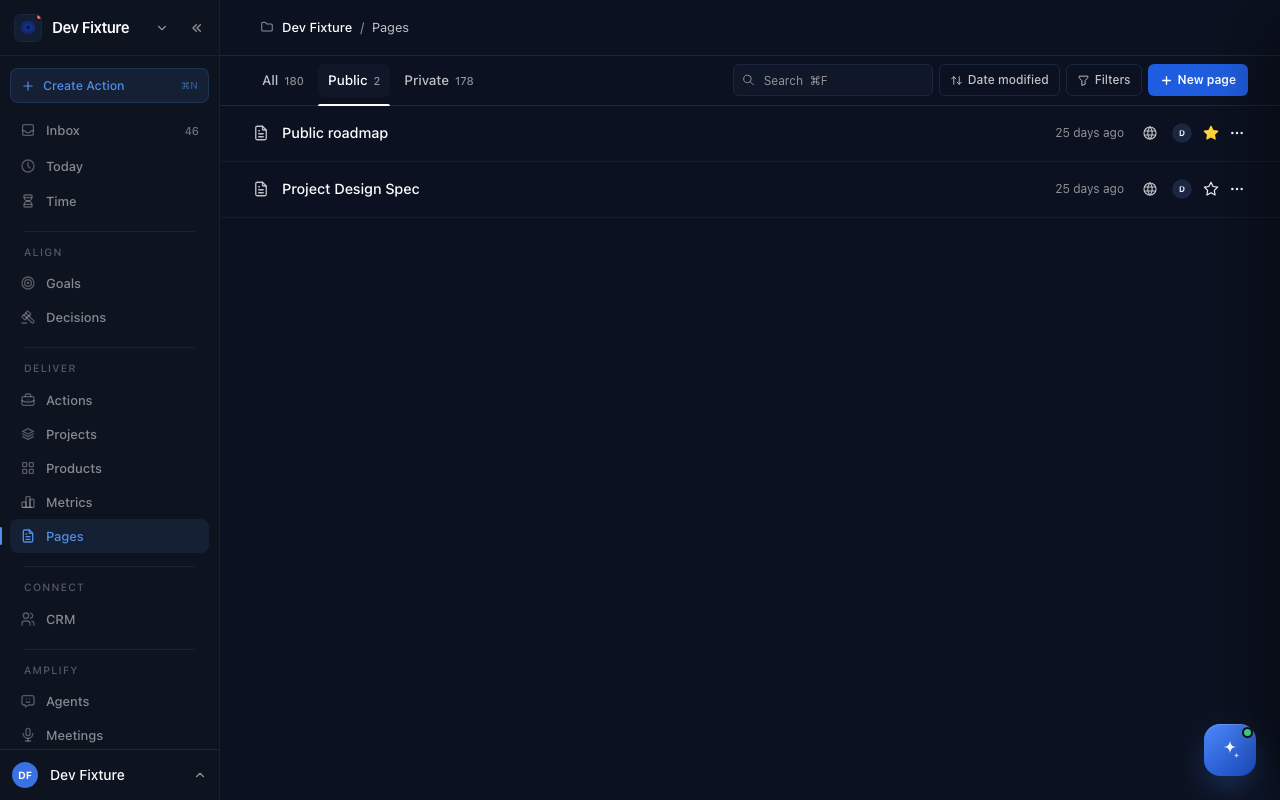
Where to find it
Deliver → Pages in the sidebar. Each page has its own URL; a published page also has a public one.
How to read the list
- All, Public and Private filter by visibility; Filters narrows by Created by and Project; sort by Date modified, Date created or Title.
- Search ⌘F finds pages by title.
- The star on a row adds the page to your Favourites; the ⋯ menu on a row holds its actions.
How to write a page
- Click New page. A blank page opens straight away, untitled and private.
- Give it a title, then write. Select text to format it; type / to insert a block (headings, lists, images, dividers and more).
- Everything saves as you type. Use full width widens the editor.
Pages can nest: a page lists its subpages, so a spec can hold its sections as pages of their own. Mention teammates with @ in the Activity thread below the page (⌘Enter to send) to discuss it.
How to share a page
Click Share on the page.
- Publish to web turns on a public link for anyone, signed in or not. Copy public link and Open public page appear once it is published; you can edit the readable part of the Link (the ending is permanent, so old links keep working); Allow search engines decides whether it can be indexed, otherwise it is link-only. The list shows it under Public with a Published badge.
- Unpublished pages are visible to your workspace's members. A page attached to a restricted project follows that project's access.
How to use pages with Zoe
- Ask Zoe to draft a page ("write a PRD for the onboarding redesign") and it appears in the list for you to edit.
- Pages are part of the Knowledge base: Zoe searches them when answering and cites the page.
- A ceremony occurrence's notes are a page too; the page shows a link back to the occurrence.
How it connects
- Products — a feature's Docs can hold a PRD page: Products.
- Knowledge base — pages, meeting transcripts and uploaded documents share one search: Knowledge base.
- Projects — a page can be attached to a project so it shows up in that project's context.
- CLI —
exponential pagescreates, lists and links pages, andfeatures link-pageattaches one to a feature.
FAQ
Can I import from Notion or Google Docs? Not yet. Paste the content in; Markdown pastes cleanly.
Can someone outside the workspace comment on a public page? No. Public pages are read-only for visitors; comments need a workspace account.
Where did my page go? Check the Private filter and your favourites, and search by title. Deleted pages are gone; Duplicate first if you want a copy.