
Calendar & scheduling
See your calendar beside your actions, subscribe to published calendars, and book a meeting with workspace members at a time that suits everyone
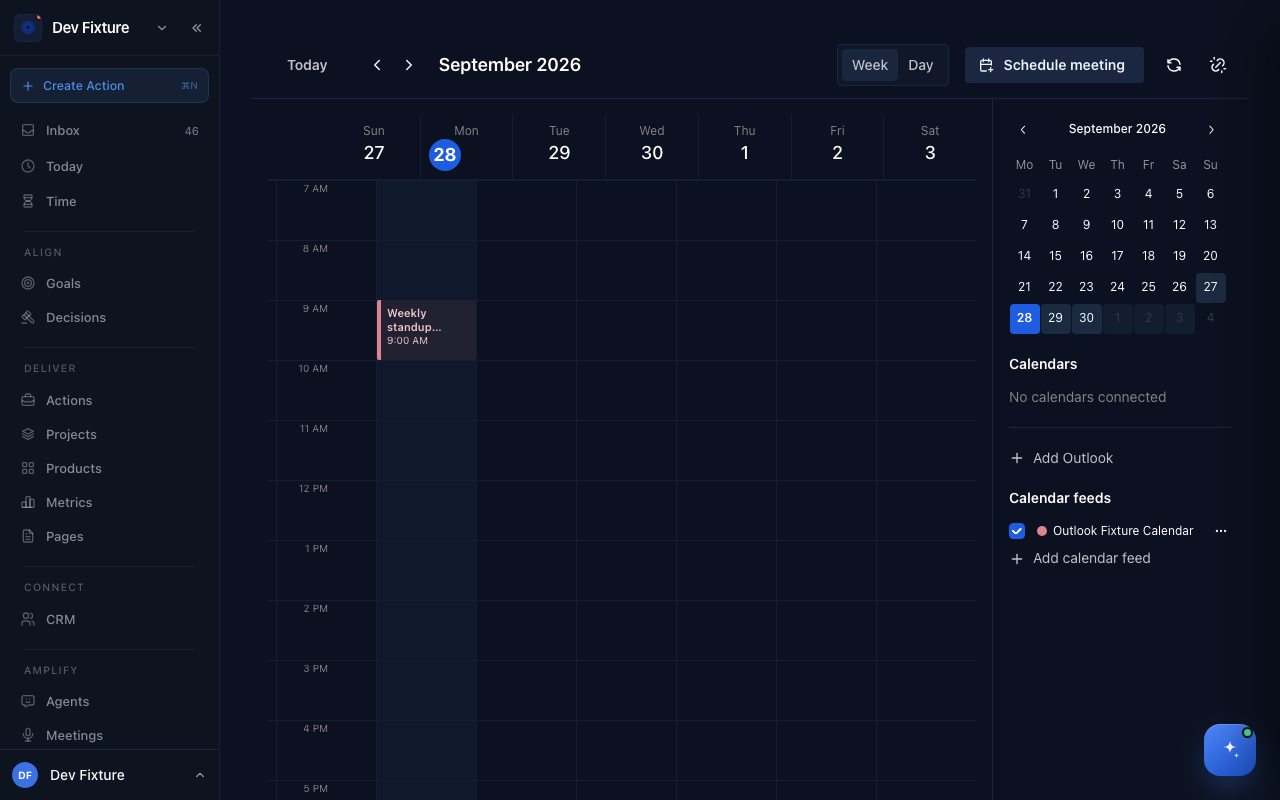
The calendar shows your connected calendars and feeds by week or day, with your scheduled meetings on it, and the same events appear in the right-hand rail of Today. From it (or from the Meetings page) you can schedule a meeting with workspace members: Exponential finds times inside everyone's working hours and sends real calendar invites. A scheduled meeting is a future booking; once it happens and is recorded it becomes a meeting.
Where to find it
Calendar. It is not in the sidebar; Today's rail links to it, and the bottom bar on a phone has a Calendar tab. Calendar connections live on Settings → Integrations.
How to read it
- Week and Day views; Today, Previous and Next to move; a month picker on the right.
- Events come from every connected calendar and feed. Refresh events pulls the latest; feeds also refresh themselves every 15 minutes.
- Under Calendars you see what is connected, with Disconnect calendar for each, and can Add Outlook or Add calendar feed.
How to connect a calendar
- Calendar feeds work with any calendar that can publish an ICS address, Outlook included, and need no account link: click Add calendar feed, paste the published address, and events appear within 15 minutes.
- Google Calendar is in early access while Google's verification completes; request access from Settings → Integrations.
- Outlook connects from the calendar's Add Outlook button where the installation has it configured.
How to schedule a meeting
- Click Schedule meeting (on the calendar or the Meetings page).
- Choose the Workspace, the Attendees (workspace members) and a Duration.
- Click Find times. Suggestions fall inside every attendee's working hours (set under Settings → Profile); tick Include times outside working hours to widen the search, which still stays between 07:00 and 20:00 on each attendee's own clock.
- Pick a time and click Schedule & send invites.
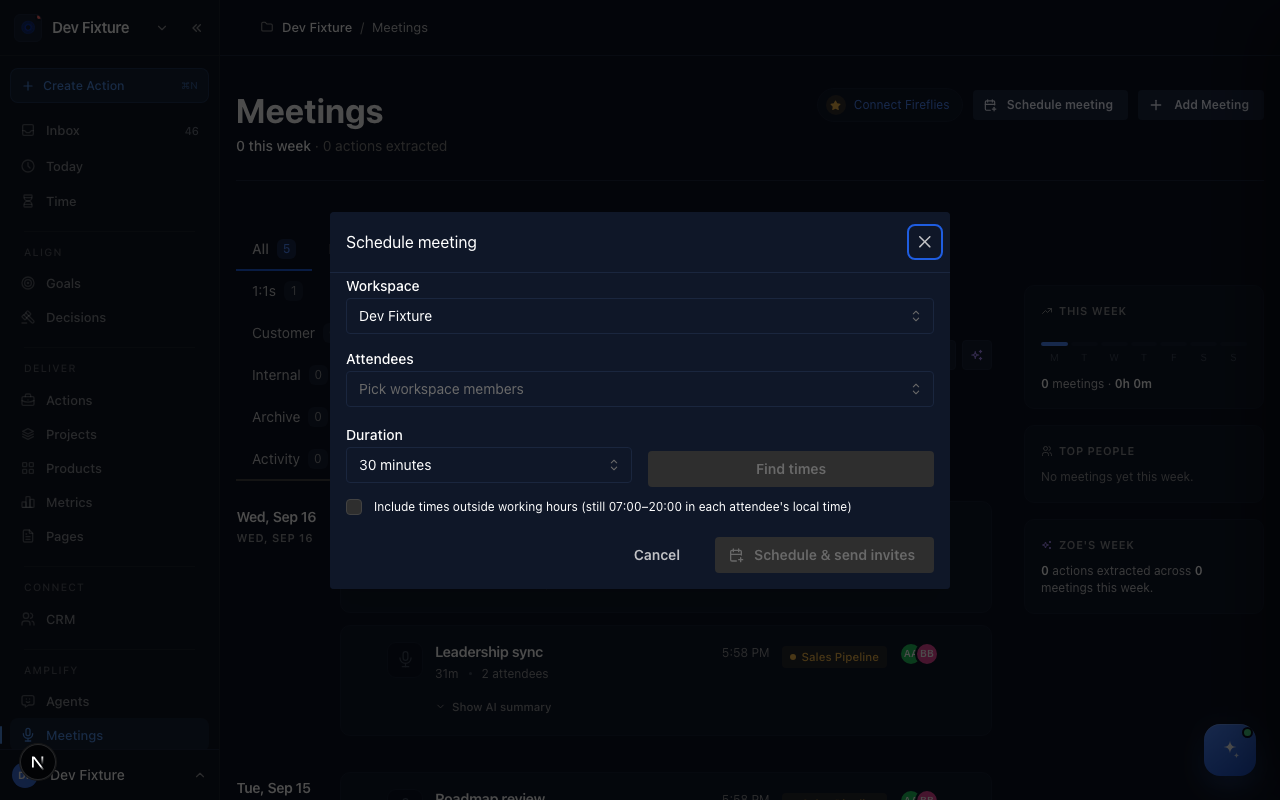 Every attendee receives an iCalendar invite by email, so the meeting lands in whatever calendar they use.
To move a meeting, cancel it and book again; the cancellation goes out as a calendar update to the same invite.
How it connects
- Today — the day's events sit beside the day's actions: Inbox & Today.
- Meetings — recorded meetings, which are the other thing called a meeting: Meetings.
- Ceremonies — an occurrence can link to a scheduled meeting: Ceremonies.
- Integrations — where Google Calendar access is requested and feeds are managed: Integrations.
- Profile — your working hours and time zone drive the suggestions: Your settings.
FAQ
Why are there no times before 07:00 or after 20:00? That window is fixed, judged on each attendee's local time, even with the working-hours box unticked.
Can I invite someone outside the workspace? Not yet. Attendees are workspace members; add a guest to the workspace first.
My feed's events are stale. Feeds refresh every 15 minutes; Refresh events forces it. If nothing changes, the published address may have been regenerated on the other side.