
Workspaces
Keep separate companies, clients or areas of your life in their own containers, each with its own members, projects, goals and plugins
A workspace is a container for a set of projects, goals, actions, meetings and CRM data, with its own members and roles. Most people have one per company or client, plus a personal one; you can belong to as many as you need and switch between them from the top of the sidebar. Everything you see in the sidebar sections — Align, Deliver, Connect and Amplify — belongs to the workspace you are in.
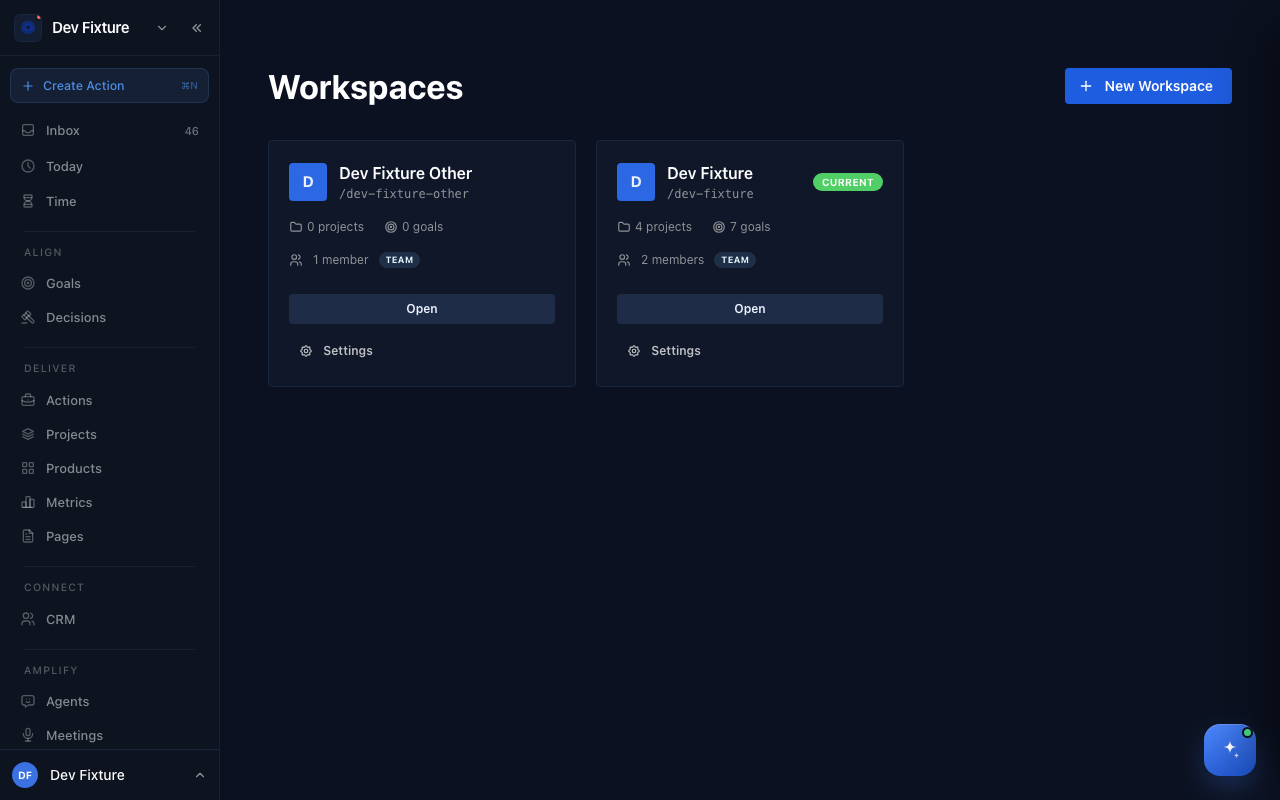
Where to find it
The workspace switcher is at the top of the sidebar; click it to change workspace, open its settings, or create a new one. The full list is at /workspaces, and /workspaces/new creates one. Workspace settings are reached from the switcher or from the Settings link on a workspace card.
How to create a workspace
- Click the workspace switcher and choose Create Workspace, or click New Workspace on the Workspaces page.
- Enter a Workspace Name. The Slug fills in automatically and appears in URLs; you can edit it before creating, not after.
- Add a Description, choose a Workspace Type (Team or Organization) and a Home page layout.
- Click Create Workspace. You become its owner.
How to invite someone
- Open workspace settings and go to Members.
- Click Invite member, search for an existing user by name or email, or enter an email address.
- Choose a Role — Admin - Can manage members and settings, Member - Can view and edit content or Viewer - Read-only access — and send.
Someone who already has an account is added straight away. Anyone else gets an invitation link that expires after 7 days; Pending invitations on the same tab lets you copy the link, resend it with a fresh link, or cancel it. Owners and admins can change a member's role (Edit role) or remove them (Remove member); the owner cannot be removed.
Roles
| Role | What they can do |
|---|---|
| Owner | Everything, including changing roles and deleting the workspace |
| Admin | Manage members, settings, integrations and plugins; full access to content |
| Member | Create and edit projects, actions, goals, meetings and CRM records |
| Viewer | Read everything; cannot change content or settings |
| Guest | Not a workspace role: someone added to a specific project only. They see that project and nothing else, and are listed under Project guests on the Members tab. Manage them on the project's Access tab. |
Team membership also grants access: if a team is linked to a workspace, its members can use the workspace as members without an invitation.
Workspace settings
Owners and admins open settings from the switcher. The tabs are:
- General — name, slug, type, logo, the description and instructions Zoe sees in this workspace, your default workspace and home layout.
- Members — members, project guests and pending invitations.
- Teams — teams linked to this workspace, teams available to link, and teams linked elsewhere.
- Features — switches for product behaviours such as advanced action features, the daily and weekly plan banners and email notifications.
- Integrations — email account, Postmark, Slack, Zulip, Matrix, Sentry, Notion and Fireflies for this workspace.
- Plugins — turn plugins such as CRM, OKRs and Product Management on or off. See Plugins.
- Ceremonies — recurring team meetings and their agendas.
- Danger zone — delete the workspace (owners only; type its name to confirm).
See Workspace settings for the full reference.
How it connects
-
Members, roles and access — roles, invitations, guests, public and restricted projects in one place: Members, roles & access.
-
Teams — a team is a group of people; link it to a workspace under Teams to give everyone in it access at once.
-
Projects — every project lives in one workspace; a Restricted project limits it to its own members and workspace admins.
-
Plugins — plugins are enabled per workspace, and their data (CRM contacts, OKRs) stays inside it.
-
Notifications — you can switch email off for one workspace without touching the others.
FAQ
Can I move projects or contacts between workspaces? Not yet. Create them in the workspace they belong to.
Which workspace opens when I follow a link that does not name one? Your default workspace. Set it under General in the settings of the workspace you want.
What happens if I leave a workspace? You lose access to it; nothing is deleted, and other members keep working as before.
Can I delete a workspace? Owners can, from Danger zone. It removes everything in the workspace and cannot be undone.