
iOS Shortcut
Add actions to Exponential by voice or text from your iPhone, iPad or Mac using Apple Shortcuts
Capture actions by voice or keyboard from your iPhone, iPad or Mac without opening the app. Once set up, say "Hey Siri, Save Action", dictate the action, and it lands in your Inbox. Dates ("call John tomorrow") and project names ("send invoice for Sales project") are picked up from what you say.
Where to find it
Nothing to switch on inside Exponential — the shortcut runs in Apple's built-in Shortcuts app and talks to your account with an API key from Settings → API keys. Install it from the Exponential shortcut link.
How to set it up
1. Create an API key
- Open Settings → API keys and click Create API Key.
- Fill in the form: API Key Name (for example
iOS Shortcut), Token Type = Hex Key (32 chars), Expires In = 90 days. - Click Generate API Key and copy the key straight away — it is shown once. Paste it somewhere safe (Notes is fine) for step 3.
2. Install the shortcut
- On your iPhone, iPad or Mac, open the Exponential shortcut link.
- Tap Add Shortcut.
3. Add your API key
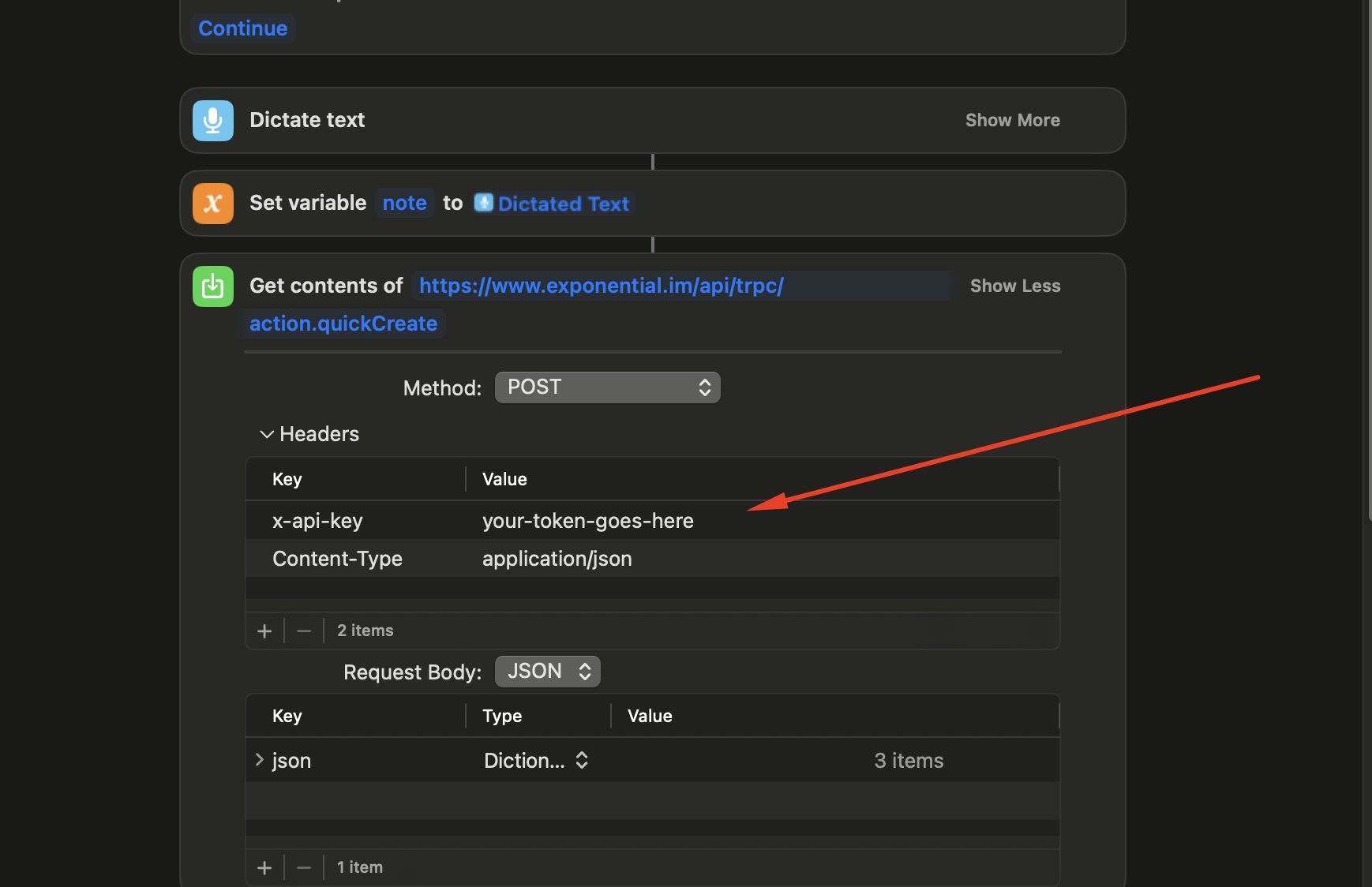
- Open the Shortcuts app and find the Exponential shortcut.
- Tap the three dots (
...) to edit it. - Scroll to the Get contents of URL block and expand Headers.
- Replace the
YOUR_API_KEY_HEREvalue next to x-api-key with your key. - Tap Done.
4. Rename it for Siri
The shortcut's name is the phrase Siri listens for.
- Long-press the shortcut in the Shortcuts app and tap Rename.
- Type Save Action (or any phrase you would rather say) and tap Done.
How to use it
- Siri: say "Hey Siri, Save Action", then speak the action when Siri asks.
- Shortcuts app: tap Save Action and type or dictate.
- Home Screen: long-press the shortcut and tap Add to Home Screen for one-tap capture.
| What you say | What gets created |
|---|---|
| "Buy groceries" | Buy groceries in your Inbox |
| "Call John tomorrow" | Call John, due tomorrow |
| "Review proposal next Friday" | Review proposal, due next Friday |
| "Send invoice for Sales project" | Send invoice, filed in the Sales project |
How it connects
- Inbox and Today — captured actions arrive in the Inbox unless you named a project.
- API tokens — the key the shortcut uses; revoke it there if you lose your phone.
- Chrome extension — the same quick capture from your desktop browser.
FAQ
"Invalid or expired API key" The key has expired or was revoked. Create a new one under Settings → API keys and paste it into the shortcut again (step 3).
Nothing happens when I run it. Check the key was pasted without spaces, that it has not expired, and that you are online.
The date wasn't picked up. Be specific: "tomorrow", "next Monday" and "Friday" work; "soon" or "later" are not dates.
Can I change the default priority?
Yes. Edit the shortcut's Request Body and change the priority value to one of the app's priorities: Quick (the default), Scheduled, 1st Priority through 5th Priority, Errand, Remember, Watch or Someday Maybe.