
Members, roles & access
Who can see and do what in a workspace: roles, invitations, guests, and public or restricted projects
Access in Exponential has two layers. A workspace role says what someone can do across the whole workspace: owner, admin, member or viewer. On top of that, a project can be opened up (public, viewable by anyone with the link) or closed down (restricted, visible only to the people named on it), and people can be given access to one project without any workspace role at all; those are guests. External agents follow the same rules as the person who owns them.
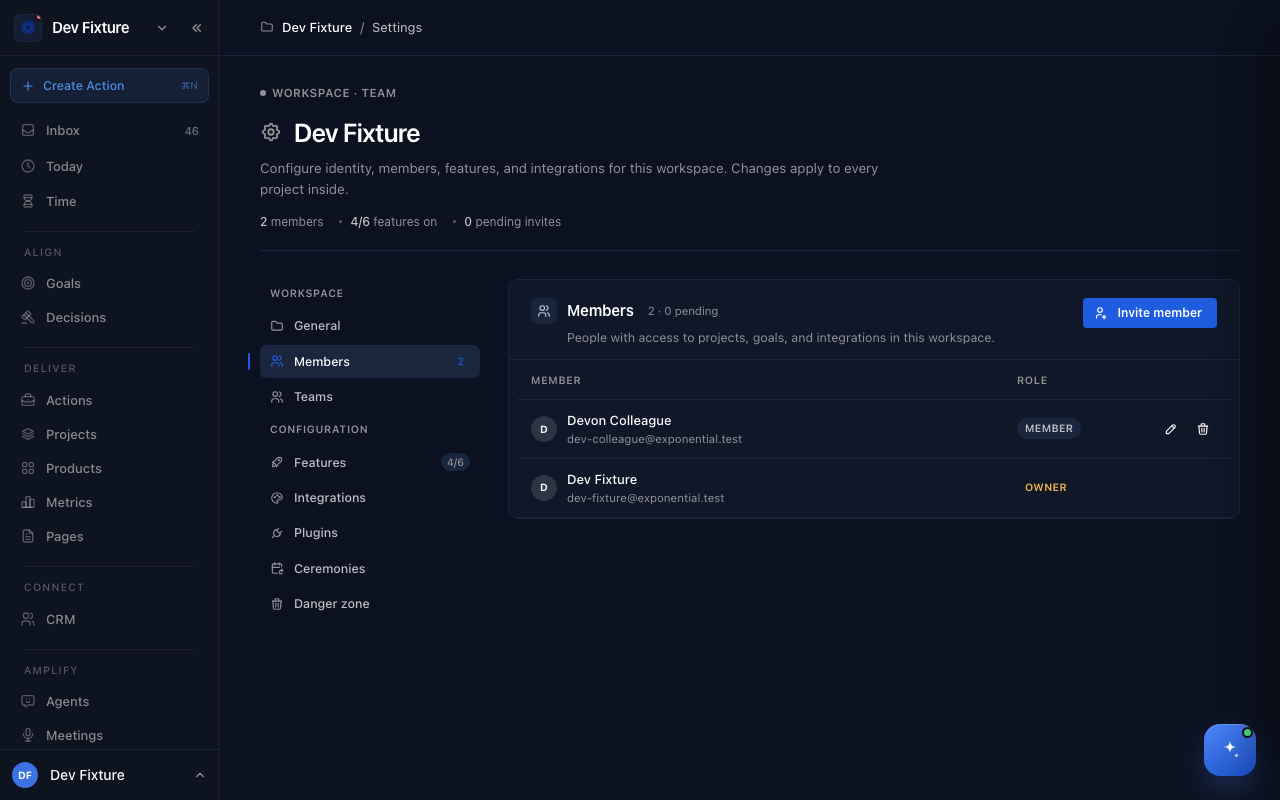
Where to find it
- Roles and invitations: workspace settings → Members (owners and admins). See Workspace settings.
- A project's visibility and its guests: the project's Access tab.
- Teams, for sharing projects with a group at once: Teams.
Roles
| Role | Can |
|---|---|
| Owner | Everything: settings, members and their roles, plugins, integrations, the Danger zone. Only owners change roles or delete the workspace, and the owner cannot be removed. |
| Admin | Manage members and settings, features, plugins and integrations. |
| Member | View and edit content: projects, actions, goals, meetings. |
| Viewer | Read-only access. |
Everyone with a role sees every unrestricted project in the workspace.
How to invite someone
- In workspace settings → Members, click Invite member.
- Enter their email and pick a role (Admin, Member or Viewer; the picker explains each).
- They get an email with a link that is valid for seven days. Pending invitations are listed with who invited them and when they expire; Resend (generate new link) issues a fresh link and Cancel invitation withdraws it.
Change a role or remove a member from the same table (Edit role, Remove member). Removing a person also removes the external agents they own from the workspace.
How to open or close a project
On the project's Access tab:
- Public project — anyone with the link can view the project and create actions in it, signed in or not. Use it for community projects and bounties.
- Restricted project — only the project's creator, the people added as project members (with a project role of admin, editor or viewer), and workspace owners and admins can see it, including its meetings. Members of a team the project is shared with do not get in; add them as project members instead. Turning restriction on takes access away from ordinary workspace and team members immediately.
Both switches can be on: the project is publicly viewable, and within the workspace only its members work on it. Meetings keep one exception: a meeting assigned to a restricted project is visible only to that project's members and admins, whatever its own setting.
Guests
A guest is someone with access to specific projects but no workspace role. Add them as members on a project's Access tab; they are listed under Project guests in workspace settings → Members, and their access is managed per project. A guest sees the projects they were added to and nothing else in the workspace.
External agents
An external agent joins a workspace as a member, added by its owner. Its access never exceeds its owner's: demote or remove the owner and the agent follows. Everything it does is attributed to the agent, and it shows an agent badge in the members list.
How it connects
- Workspaces — creating workspaces and switching between them: Workspaces.
- Teams — share several projects with a group and manage its own members: Teams.
- Projects — the Access tab lives on each project: Projects.
- Meetings — meeting visibility follows the project: Meetings.
- External agents — agent-owned keys and the delegation rule: External agents.
FAQ
Someone accepted an invite but cannot see a project. The project is restricted. Add them as a project member on its Access tab; a workspace role or team membership is not enough.
Can a viewer comment? No. Viewers read; members edit.
Can I make one project public without exposing the workspace? Yes. Public applies to that project only. Everything else stays members-only.