
GitHub, Google & Monday.com
Track repositories so pull requests show up in activity and metrics, bring Google contacts and calendars in, and push actions to Monday.com boards
Three integrations that reach outside the meeting-and-chat loop. GitHub connects your workspace to the repositories it ships from, so commits and pull requests feed the activity feed, delivery metrics and the Decision Log's ADR sync. Google covers calendar access and importing the people you already know. Monday.com pushes actions to a board for teams that plan there.
Where to find it
- GitHub: Settings → Integrations → GitHub Repositories. The repositories you add are tracked by the workspace you are in.
- Google: Settings → Integrations for Google Calendar; the CRM's Import Contacts dialog for Google Contacts and calendar-derived contacts.
- Monday.com: Workflows (from your user menu) → Monday.com Boards → Configure.
How to connect GitHub
GitHub is connected through a GitHub App that an administrator of your installation installs on your organisation; a workspace then chooses which of the App's repositories to track. There is no pasting of personal tokens.
- Ask your administrator to install the Exponential GitHub App on the organisation and grant it the repositories. Until then the card reads "GitHub isn't set up on this deployment yet".
- In Settings → Integrations, open GitHub Repositories, search the repositories the App can see and add the ones this workspace ships from. A repository can be tracked by more than one workspace.
- From then on the workspace reads that repository's activity through the App: pull requests and commits appear in the activity feed, merged-PR turnaround feeds the Products plugin's Metrics page, and
docs/adrfiles can be projected into the Decision Log.
How to use Google
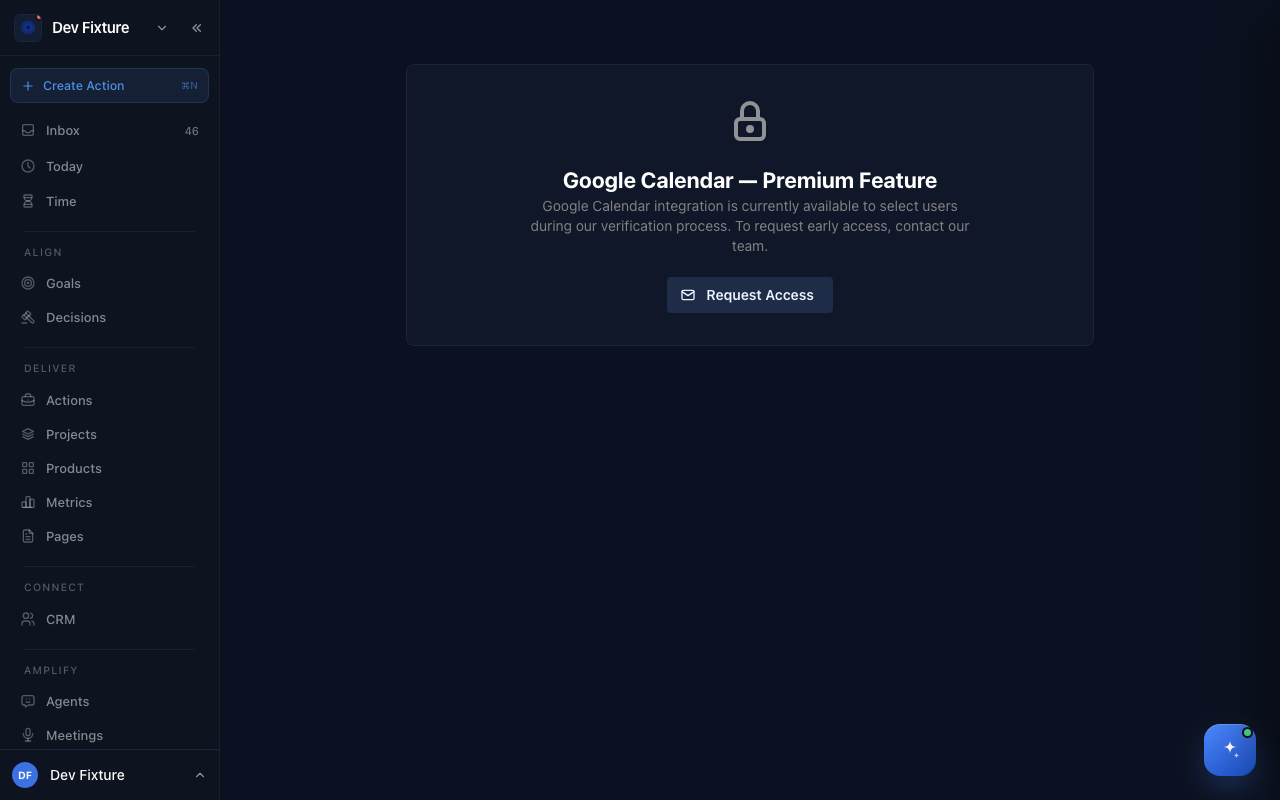
- Google Calendar is in early access while Google's verification completes: open Settings → Integrations and click Request Access. In the meantime a published calendar can be subscribed to as a feed; see Calendar & scheduling.
- Google Contacts and calendar contacts: in the CRM, open Contacts → Import / Export → Import Contacts and choose the Import Source: Google Contacts Only (your saved address book), Calendar Events Only (people you have met with) or both. See Contacts.
- Google Docs meeting summaries and document import are listed on Workflows as Coming Soon.
How to push actions to Monday.com
- On Workflows, find Monday.com Boards and click Configure.
- Connect with your personal Monday.com API Key and give the integration a Name (and an optional description).
- Pick the board to sync to under Selected Board, and map its Columns for Assignee, Due Date, Priority and Description.
- Choose the Action Source (every action, or only actions extracted from Fireflies meetings) and the Sync Direction: push to Monday.com, pull from it, or both ways.
- Save. Actions matching the source flow in the direction you chose; Integration Status on the same page shows the connection and the current board.
Monday.com and Notion sync are exclusive: a workspace syncs actions with one of them at a time.
How it connects
- Integrations overview — every connection in one table: Integrations.
- Decisions — ADRs from tracked repositories: Decisions.
- Products — merged pull requests per cycle on the Metrics page: Products.
- Notion — the other task-sync option: Notion.
- Self-hosting — configuring the GitHub App on your own installation: Self-hosting.
FAQ
Can I add a repository by URL? No. Repositories are chosen from what the installed GitHub App can access, so access stays with the App's permissions.
Can I create GitHub issues from Exponential? Not from the product. A GitHub Issue Creator page exists for operators with a server-side token; it is not part of the workspace integration.
Does Monday.com sync back to Exponential? Yes, if you choose Pull from Monday.com or bidirectional as the sync direction. Push-only is the default described on the Workflows card.