
CRM contacts & organizations
Keep the people and companies you work with in one place, log every interaction, and keep their personal details encrypted
The CRM (customer relationship management) plugin keeps contacts, the organizations they belong to, and a log of your interactions with them, scoped to one workspace. Personal details such as email, phone and social handles are encrypted at rest. Contacts can be linked to Meetings as participants, grouped into lists, and moved through a deal pipeline.
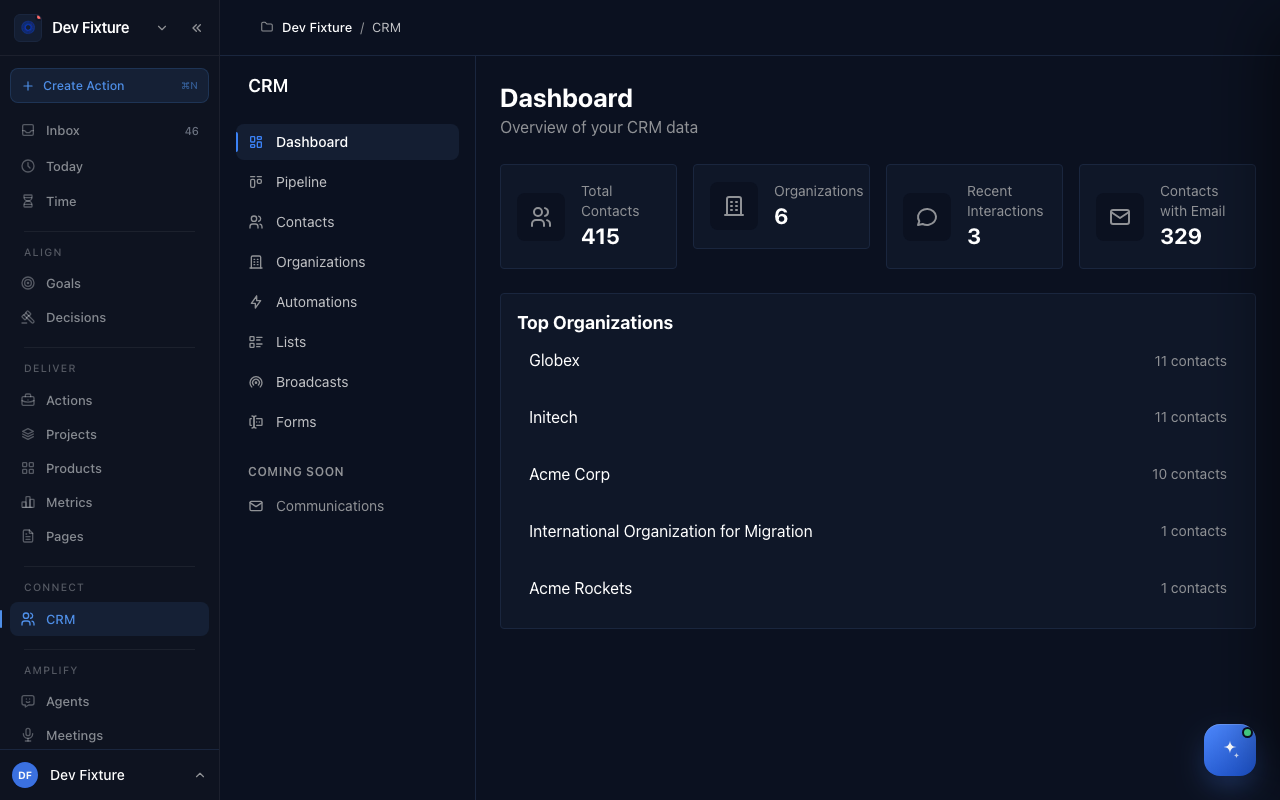
Where to find it
Connect → CRM in the sidebar. The CRM plugin is enabled by default; if the item is missing, a workspace owner or admin can switch it on under workspace settings → Plugins (see Plugins). Inside the CRM, the left-hand menu has Dashboard, Pipeline, Contacts, Organizations, Automations, Lists, Broadcasts and Forms.
How to add a contact
- Open Contacts and click New Person.
- Fill in First Name, Last Name, Email, Phone, LinkedIn URL, GitHub, BlueSky, a Description, a Profile Type (Channel Partner, Advisor, Developer, Designer, Founder, Product Manager, Investor, Marketing, Sales or Other) and an Organization.
- Click Create Contact.
To bring in many contacts at once, open Import / Export and choose Import from CSV (map each column with Import as) or Import contacts from Google Contacts/Calendar. Export to CSV and Export to Excel are in the same menu. Select two or more contacts in the list and click Merge contacts to combine duplicates; you review the merged record before it is saved.
How to add an organization
- Open Organizations and click Add Organization.
- Fill in Name, Website URL, Description, Industry and Organization Size.
- Click Create Organization.
Link a contact to an organization from the Organization field on the contact. The organization page then lists everyone linked to it on its Team tab.
How to log an interaction
- Open a contact and click Add interaction.
- Choose a Type (Email, Phone Call, Meeting, Note, Telegram, LinkedIn or Other) and a Direction (Outbound or Inbound).
- Add a Subject and Notes, then save.
Interactions feed the contact's Activity tab, the Emails, Telegram and Notes tabs, the Connection strength shown on the overview, and the Recent Interactions count on the dashboard.
How to edit a contact
- On the contact page, click the pencil icon next to Record Details, or choose Edit from the ⋯ menu in the contacts list.
- The edit drawer groups fields into Identity, Contact (Email, Phone), Social (LinkedIn URL, Telegram, Twitter / X, GitHub, BlueSky), notes and Images.
- Save.
Enrich in the same menu queues a web search that fills in missing details; workspace owners, admins and members can run it, and the Auto-enrich Contacts feature in workspace settings can run it for new contacts automatically.
How it connects
-
Pipeline, forms and broadcasts — deals, public forms and scheduled emails: Pipeline, forms & broadcasts.
-
Pipeline — a contact can have deals that move through pipeline stages. See Lists, pipelines & automations.
-
Lists — named groups of contacts; a Broadcast emails everyone on a list.
-
Automations — run steps when a contact's Profile Type is set, or when a contact is added to a list.
-
Forms — public forms that create contacts when submitted.
-
Meetings — a contact's Meetings tab lists the meetings they were a participant in.
-
Workspaces — CRM data belongs to one workspace; other workspaces cannot see it.
Tips
- Set a Profile Type on every contact. It is the filter you will reach for most, and it is the trigger automations key off.
- Add a contact's email even if you know nothing else: it is what stops imports and merges from creating duplicates.
FAQ
What exactly is encrypted? Email, phone, LinkedIn, Telegram, Twitter / X, GitHub and BlueSky are encrypted at rest. Names, descriptions and organization details are not.
Who can see contacts? Every member of the workspace. Viewers can read them; owners, admins and members can edit and enrich.
Can I move a contact to another workspace? Not yet. Export to CSV from one workspace and import into the other.
What is the Communications item in the CRM menu? It is marked Coming Soon and does nothing yet.