
Plugins
Turn OKRs, CRM and Product Management on or off per workspace
Plugins are optional feature sets you switch on per workspace. Turning one on adds its pages to the sidebar and its widgets to the dashboard; turning it off hides them without deleting any data.
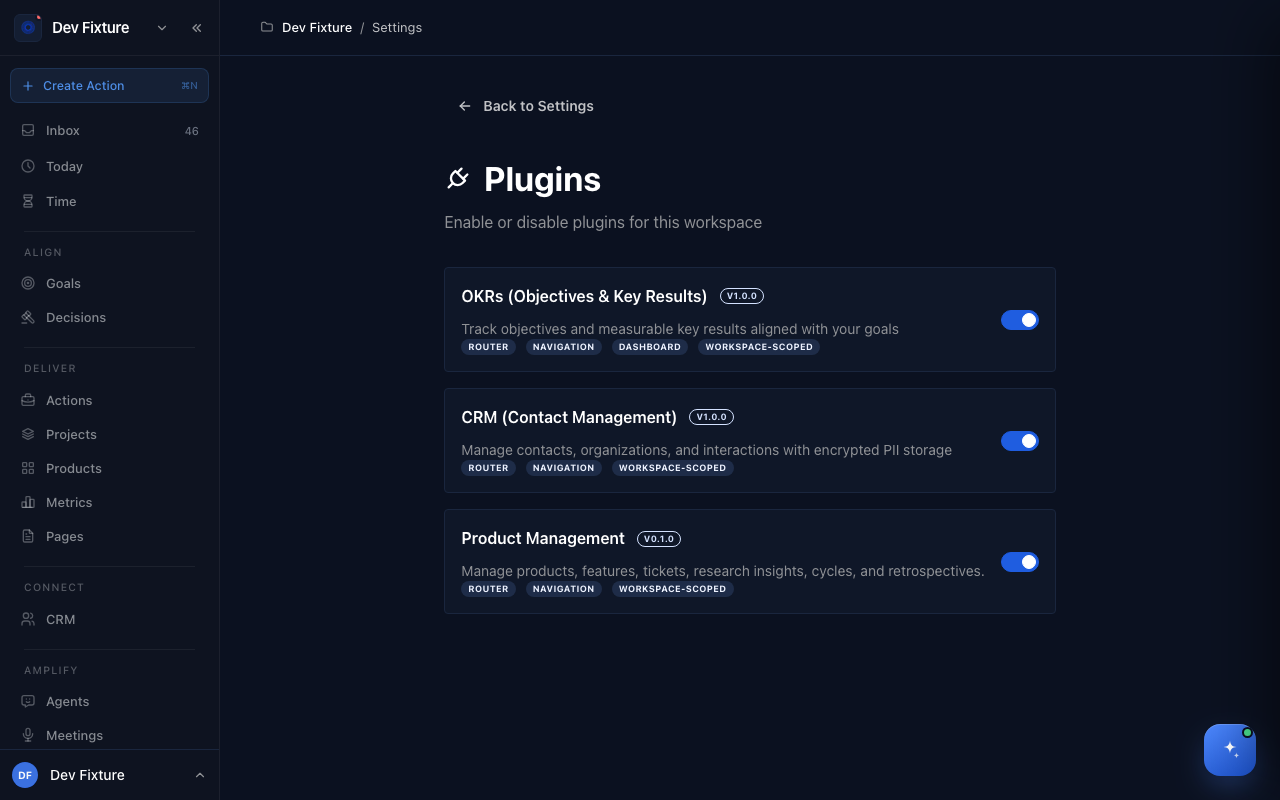
Where to find it
Workspace settings → Plugins: open the workspace switcher at the top of the sidebar, choose the settings entry, then the Plugins tab.
What's available
| Plugin | On by default | What it adds |
|---|---|---|
| OKRs (Objectives & Key Results) v1.0.0 | Yes | Key results on goals and the OKR Progress dashboard widget. See OKRs. |
| CRM (Contact Management) v1.0.0 | Yes | Connect → CRM in the sidebar: contacts, organizations, interactions, lists and pipelines. See Contacts. |
| Product Management v0.1.0 | No | Products and Metrics under Deliver in the sidebar: products, features, tickets, research insights, cycles and retrospectives. See Products, tickets, features & cycles. |
How to enable or disable a plugin
- Open workspace settings and click the Plugins tab.
- Find the plugin's card and flip its switch. A Plugin Enabled or Plugin Disabled message confirms it.
- The sidebar updates for everyone in the workspace.
How it connects
- Workspace settings — the other tabs on the same page.
- OKRs and Contacts — what the two default plugins give you.
- Goals — with Product Management on, a goal gains a Features tab linking it to product work.
FAQ
Does disabling a plugin delete its data? No. Contacts, key results and product records stay where they are and reappear when you enable it again.
Can I enable a plugin for just myself? No. Plugins are per workspace and apply to every member.
Can I add my own plugin? Not yet — the three above are the only ones.
Last updated Edit this page on GitHub