
Projects
Group related actions into a project with an owner, a status, a priority and the goals it serves
A Project groups the actions that deliver one outcome. It has a status, a priority, a DRI, optional dates, and links to the Goals it serves. Each project has its own board, timeline, meetings and integrations, and its access can be opened to the workspace or restricted to named members.
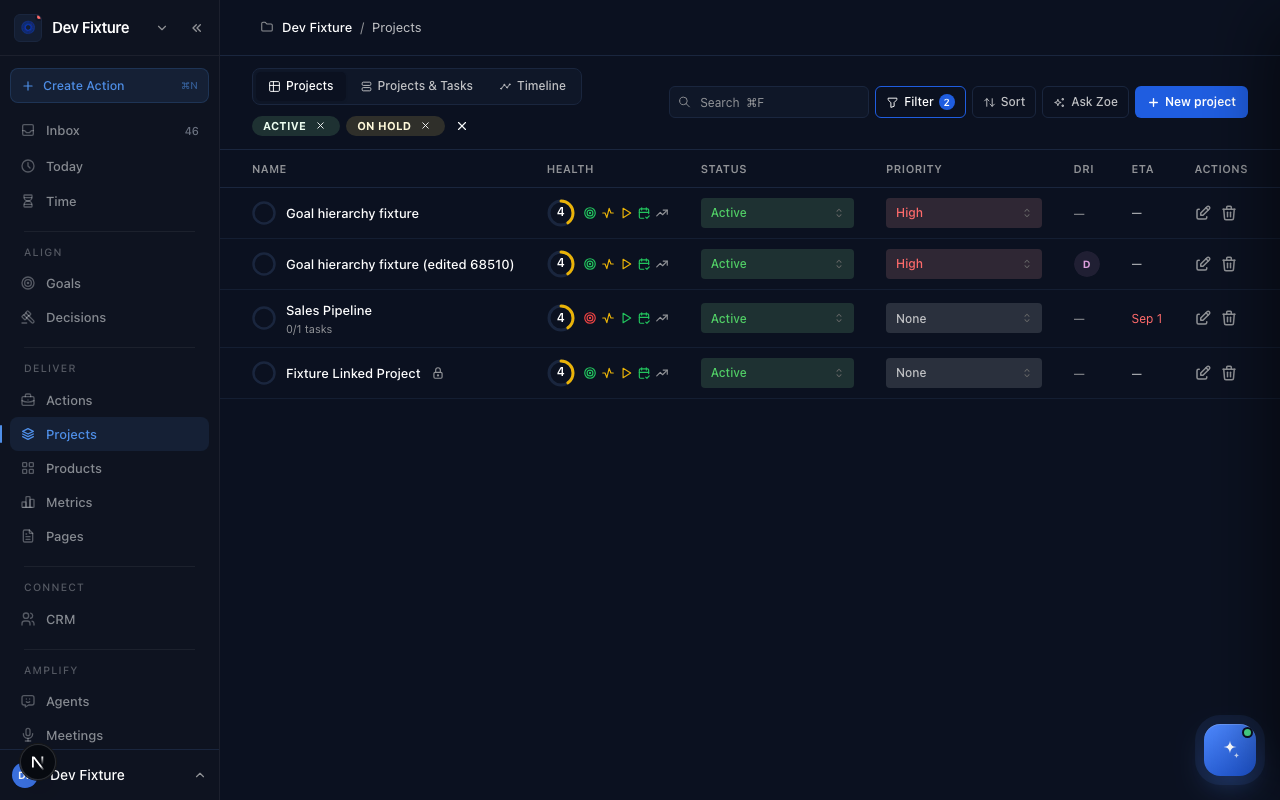
Where to find it
Deliver → Projects in the sidebar. The page has three tabs — Projects, Projects & Tasks and Timeline — plus Search (⌘F), Filter, Sort, Ask Zoe and New project.
How to create a project
- Click New project.
- Enter a Project name and, optionally, a Project description and Instructions — guidance Zoe and agents follow when they work inside the project.
- Set the Status (Active, On Hold, Completed, Cancelled) and Priority (None, Low, Medium, High), and a Start date and End date if you have them.
- Link it: Link to Goals (Objectives), Link to Key Results, Life Domains (optional) and Ceremonies (optional). With the Product Management plugin you can also pick a Product.
- Choose a DRI, and decide access with the Public project and Restricted project switches (see below).
- Save. The project appears in the list; if you cannot see it, check the status chips above the table.
How to find a project
- Click a status or priority chip on Filter to narrow the list; the active chips show above the table.
- Change a project's Status or Priority inline from the dropdowns in its row.
- Switch to Projects & Tasks to see each project with its open actions, or Timeline to see projects by date.
How to work inside a project
Click a project to open it. Its tabs:
- Overview — dates, linked goals and recent activity.
- Tasks — the project's kanban board: Backlog, To Do, In Progress, In Review, Done, Cancelled. Drag cards to change status.
- Goals — the goals this project serves.
- Timeline — the project's actions and milestones over time.
- Workflows — automations linked to the project (see Workflows in the user menu).
- Meetings — meetings linked to the project, including Fireflies recordings and the actions extracted from them.
- Integrations — task sync with Notion Tasks Sync or Monday.com Integration (one at a time), Slack Notifications with a Slack Workspace and Slack Channel, and a Matrix Room for summaries.
- Access — the project's members and who created it.
Projects owned by a team also get Weekly Team Review and Weekly Commitments tabs.
How to control who sees a project
- Every member of the workspace can see an ordinary project, whatever their role.
- Turn on Restricted project to limit it to the creator, people added as members on the Access tab, and workspace owners and admins. Members of the owning team are not included automatically — add them as project members. People who attended a meeting can still view that meeting.
- To hand a project to a team, open the team under Teams in the user menu and add the project there.
How it connects
-
Access — public and restricted projects and project guests: Members, roles & access.
-
Actions — a project's actions live on its Tasks tab and in the workspace board.
-
Goals and OKRs — link a project to the goals and key results it moves.
-
Teams — team-owned projects gain the weekly review tabs.
-
Fireflies — recordings matched to a project appear on its Meetings tab.
Tips
- Give a project a DRI and an End date — the ETA column and the Timeline tab are empty without them.
FAQ
Can I sync a project with GitHub issues? Not from the project page. The Integrations tab offers Notion and Monday.com for task sync.
Does a project track a progress percentage? Not as a field you set. The Health ring in the list summarises the project's state.