
Your settings
Personal preferences that follow you across every workspace: profile, notifications, navigation, appearance, connections, API keys, agents and AI
Your settings are yours alone and apply in every workspace you belong to: how the sidebar is arranged, which theme you use, where notifications go, and which services and keys are connected to your account. Anything that changes a workspace for everyone lives in Workspace settings.
Where to find it
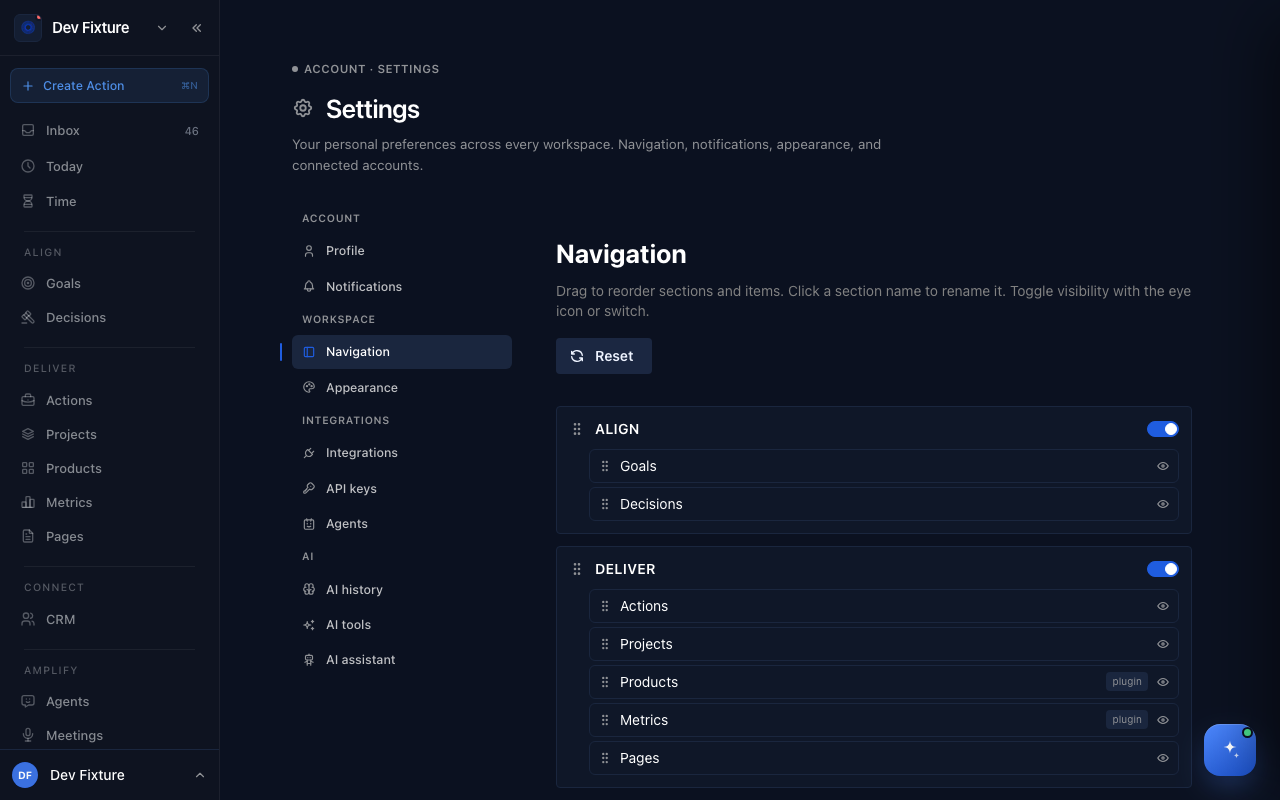
Open your user menu at the bottom of the sidebar and choose Settings, or go to /settings. The tabs are grouped: Account (Profile, Notifications), Workspace (Navigation, Appearance), Integrations (Integrations, API keys, Agents) and AI (AI history, AI tools, AI assistant).
Profile
Set your Timezone (calendar events and working hours are interpreted in it; the page tells you what your browser reports) and see the Connected Accounts you can sign in with: Discord, Google and Notion can each be linked to the same account.
Notifications
Choose which notifications you get and where each one goes: push, email, Matrix, WhatsApp or Zulip. See Notifications.
Navigation
The sidebar is yours to arrange:
- Drag sections and items to reorder them.
- Click a section name to rename it (for example, call "Deliver" "Work").
- Toggle visibility with the eye icon or the switch. Hidden items keep their data; nothing is deleted.
- Reset restores the default layout.
Items marked plugin (Products, Metrics) only appear when the workspace has that plugin on. Inbox, Today and Time are always shown.
Below the layout, Home Screen has three switches: Daily Inspiring Quote, AI Suggested Focus and Browse All Quotes.
Appearance
Color mode: Light, Dark or System. Dark theme style: Navy or Slate.
Integrations
Your personal connections to other services. See Integrations.
API keys
Tokens that let the iOS shortcut, the browser extension, the CLI and webhooks act as you. See API tokens.
Agents
External agent software you run, each with its own identity and key. See External agents.
AI history
A log of your AI interactions across platforms and agents: totals, error rate, average response time, and a breakdown by platform and agent, filterable by workspace and project.
AI tools
Two demonstrations: AI Sales Demo (AI-generated sales pages) and AI Automation (an overview of automation services).
AI assistant
Create a personal assistant with its own Name, Emoji, Personality & Soul, optional Instructions and About You / Your Team context. This page is also where you connect Telegram and Matrix to chat with your assistant, choosing which agent answers by default (Zoe or a specialist). See Zoe.
How it connects
- Workspace settings — members, features, plugins and ceremonies are per workspace: Workspace settings.
- Notifications — delivery preferences: Notifications.
FAQ
Will hiding a sidebar item hide it for my team? No. Navigation is personal; each member arranges their own.
I hid something and cannot find it. Open Settings → Navigation and switch it back on, or click Reset.
Where do I change my name or photo? They come from the account you signed in with. Link or switch providers under Profile → Connected Accounts.