
External agents
Connect third-party AI agents to Exponential as first-class team members with their own identity, scoped access and revocable keys
External agents let you connect autonomous AI software — Hermes Agent, MCP clients, custom scripts, anything that can send an HTTP request — to Exponential as its own identity, not as you. When your agent creates an action, the action says the agent created it, and the workspace's activity feed and members list show it with an agent badge. This is different from Zoe, who works with you in a conversation and acts as you with your confirmation.
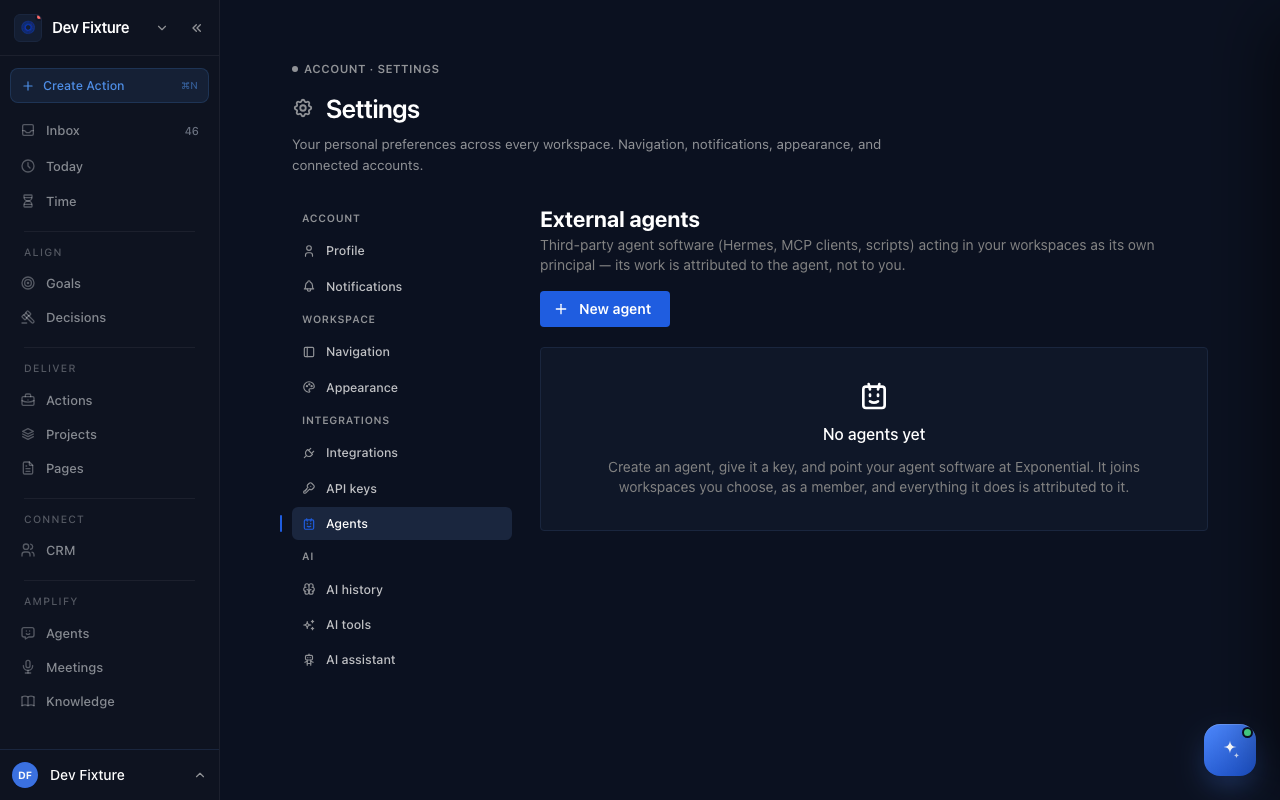
Where to find it
Settings → Agents (user menu → Settings → Agents).
How to create an agent
- Click New agent, give it a Name ("Hermes", "Standup Bot") and an optional Description, then click Create.
- Next to Workspaces, click Add, tick the workspaces it may work in and confirm. The agent joins each one as a member; you can only grant workspaces where you have at least member access yourself.
- Under Keys, click New key, give it a Label (for example "laptop") and click Create key.
- Copy the key now — it starts with
exp_agent_and is never shown again. Click Done.
How to point your software at Exponential
Your agent authenticates by sending the key as a Bearer token:
Authorization: Bearer exp_agent_...
For agent software that runs shell commands (like Hermes), the simplest path is the Exponential CLI with the agent key as its token — see API tokens.
How to rotate or revoke a key
- Each agent can hold up to 10 keys. Create a second key, move your software to it, then revoke the first — no downtime.
- To revoke, click the revoke icon on the key's row. It takes effect on the agent's next request.
- The key table shows Last used and Expires, so you can spot stale or unexpected activity.
- Deleting the agent removes its keys and workspace access immediately; its past work stays attributed to it.
What an agent can and cannot do
External agents are deliberately more limited than human members:
- Member role only. An agent is always a workspace member — never an owner or admin. It cannot manage members, change workspace settings or manage other agents.
- Your access is the ceiling. If you leave a workspace or are changed to viewer, your agents lose that workspace immediately.
- No credential minting. Agents cannot create API tokens, connect integrations or generate other credentials.
- Admins can remove it. A workspace admin can remove an agent from the Members list at any time without touching your keys.
How it connects
-
MCP server and SDK — the client libraries an agent can use with its key: MCP server & SDK.
-
API tokens — tokens act as you; use them for webhooks and personal automation instead.
-
Zoe, your assistant — the built-in assistant that works with you in a conversation.
-
Workspaces — what a member can and cannot do.
FAQ
Can an agent be read-only? Not yet. Agents always join as members. A read-only (viewer) tier is planned.
Can my whole team share one agent? Agents are personal — each belongs to the user who created it, and its access is tied to that user's. Shared workspace-owned agents are under consideration.
Does this replace API tokens? No. API tokens act as you and are right for webhooks and personal automation. Use an external agent when software should have its own identity and audit trail.
How do I see what an agent did? Actions it created list the agent as creator, and the workspace activity feed shows its entries with an agent chip.