
Teams
Group the people you work with, share projects and integrations with them, and link the team to a workspace so everyone gets access at once
A team is a group of people. Where a workspace holds data, a team holds members: give it projects and integrations to share, and link it to a workspace so all of its members can use that workspace without individual invitations. An organization team can also receive its members' shared weekly plans.
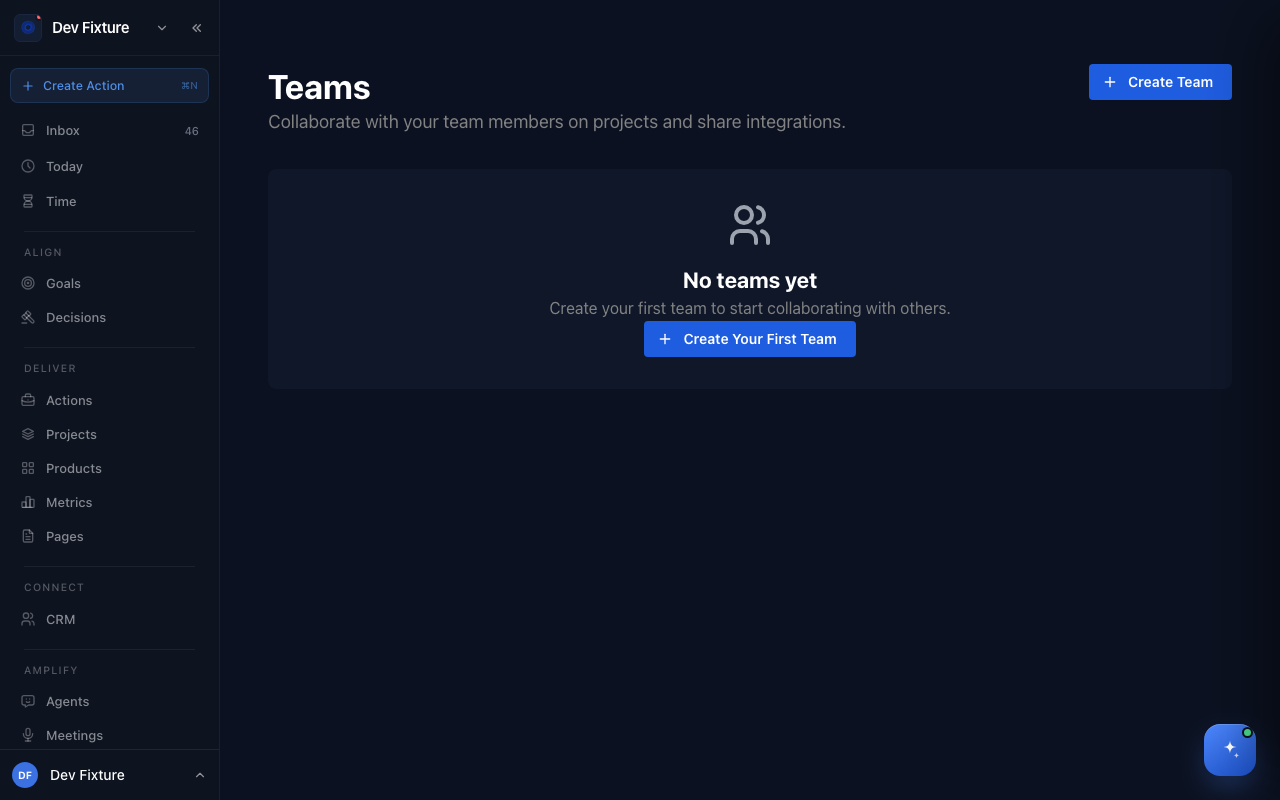
Where to find it
Open Teams, or choose Teams from the user menu (your avatar, bottom-left). Workspace owners and admins also see the teams linked to a workspace under its settings → Teams.
How to create a team
- Click Create Team.
- Enter a Team Name. The Team Slug fills in from the name and is used in URLs (lowercase letters, numbers and hyphens only).
- Add a Description and click Create Team. You become the team's owner.
How to add members
- Open the team (or use Add Member from the ⋯ menu on its card).
- Click Add Member, then either Add Existing User (search by name or email) or Invite by Email.
- Pick a Role — Member or Admin — and add.
Existing users join immediately. An emailed invitation is valid for 7 days; pending invitations are listed on the Members tab, where owners and admins can copy the link, resend it or cancel it. Owners and admins can Remove Member from a member's ⋯ menu. The owner cannot be removed.
Roles
| Role | What they can do |
|---|---|
| Owner | Everything: edit the team, mark it as an organization team, delete it |
| Admin | Add and remove members, manage projects and integrations |
| Member | Work in the team's projects and use its integrations |
How to share projects and integrations
On the team page:
- Projects tab — Assign Existing adds projects you already have; Create New creates a project owned by the team (Project Name, Description, Status, Priority, Link to Goals). Every team member can then open and edit those projects.
- Integrations tab — Add Existing Integration or Add New Integration shares a connection such as Slack with the team.
A project belongs to at most one team. Team ownership does not restrict a project: an unrestricted project stays visible to the whole workspace, and a Restricted project is limited to its own members even inside the team.
How to link a team to a workspace
- Open the workspace's settings and go to Teams.
- Under Available to link, click Link on your team. Only the team's owner can link or unlink it.
- The team now appears under Linked to this workspace, and its members can use the workspace as members. Unlink removes that access again.
Teams linked to your other workspaces show under Linked to other workspaces.
How to receive shared weekly plans
- As owner or admin, open the team's Settings tab and switch on Organization Team.
- Members then share their check-in from the workspace's Weekly Team Check-in page under Sharing Settings (see Weekly plan).
- Shared plans appear on the team's Weekly Plans tab, and each member row on the Members tab gets a View Weekly Plan button.
How it connects
-
Members, roles and access — what each workspace role can do, and why team membership does not open restricted projects: Members, roles & access.
-
Workspaces — link a team to a workspace to grant access in bulk; roles inside the workspace still come from the workspace.
-
Projects — team projects are how the team actually shares work.
-
Weekly plan — organization teams receive shared weekly check-ins.
-
Slack — a shared integration lets the whole team post to the same channels.
FAQ
Can I be on several teams? Yes, with a different role on each.
Can I change a member's role? Not from the app yet. Remove the member and add them again with the other role.
Can a project belong to two teams? No. Reassign it if it needs to move.
Does joining a team give me its restricted projects? No. Restricted projects need explicit project membership; ask the project owner to add you.
Can I create a team without a workspace? Yes. Teams exist on their own and can be linked to workspaces later.