
Time tracking
Track where your time goes with a timer, let an agent propose the rest of your day, and confirm it in one click
Time tracking shows where your days actually went: per action, per project and per product. Time reaches Exponential in two ways. You record it — a timer from the Chrome extension, or an entry from the CLI — and it is always treated as correct. Or an agent proposes it — an external agent logs time on your behalf, for example from yesterday's AI coding conversations — and it shows on your Time page straight away but counts for nothing until you confirm it. Most people use both: the agent fills in the work it can see, and you time the calls, whiteboard sessions and reading it can't.
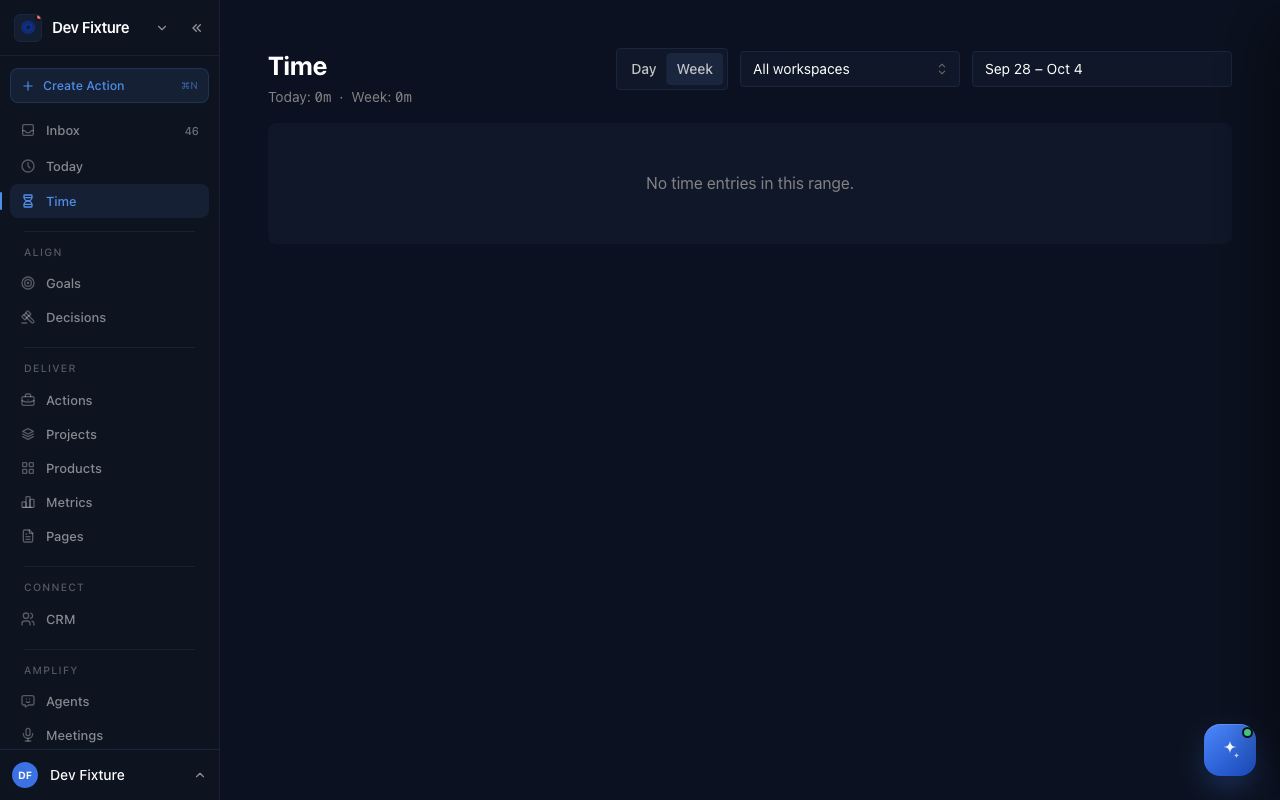
Where to find it
Open Time — it is in the sidebar just below Today. The header shows your totals for Today and this Week. Use the Day / Week switch to change view, and the workspace menu (All workspaces by default) to narrow it to one workspace.
How to read the Week view
The week view lists your time entries grouped by day, most recent first, with three reports underneath:
- By project — hours per project
- By action (top 10) — the actions that took the most time
- Daily totals — hours per day across the range
Click any entry to edit it. You can change when it Started and Ended, Reassign it to a different action, or delete it.
How to read the Day view
The day view is built for the question "what did I do yesterday?".
| What you see | What it means |
|---|---|
| Attention | The minutes you spent working. If two entries overlap, each minute is counted once. |
| Session | The plain total of all your entries. It is higher than attention whenever you work on two things at once. |
| Agent-run | Time an agent spent working on your actions while you were not involved. Shown separately and never added to your attention. |
| Proposed | How many entries are waiting for you to confirm them. |
| Unassigned | How many entries sit on actions that belong to no project or ticket. |
Below the headline you'll find:
- By product and By action charts
- A Timeline with one lane per product, an Unassigned lane, and an Agent-run lane last
- A table of every action with its Ticket, Product, Attention and Agent-run time
When two entries overlap, the charts split the shared minutes evenly between them, so they add up to your attention time. Your entries themselves are never shortened.
How to track time yourself
With the timer
- Open the Chrome extension and go to the Track Time tab
- Type what you're working on, or pick an existing action
- Start the timer
The running timer appears in the Exponential sidebar, where you can stop it with Stop timer. You can only run one timer at a time. Starting a new one stops the previous one automatically.
From the command line
Log a finished block of time with explicit start and end times. This never touches a running timer.
exponential time log --action <action-id> --from 2026-09-11T14:00 --to 2026-09-11T15:30 --note "Planning call"Entries you log with your own token count as your time and are confirmed immediately. See How to use the CLI below for setup.
How to confirm proposed time
When an external agent logs time for you, the entry is created as proposed:
- It belongs to you and appears on your Time page, but the agent is recorded as the one who wrote it.
- It is marked with a proposed badge in the week view and drawn dashed on the day timeline.
- It does not count towards an action's time spent until you confirm it.
- An agent can never confirm time. Only you can.
To confirm a day:
- Open Time and switch to Day
- Pick the day and check the entries look right
- Click Confirm day
Every proposed entry on that day becomes confirmed, and the actions' time spent updates. If you've picked a workspace in the workspace menu, only that workspace's entries are confirmed. If nothing was proposed, the button is disabled.
Editing a proposed entry confirms it. If you change its times or move it to another action, the agent treats it as settled and will never change it again, even if it runs again for the same day.
Your time always wins
When proposed time overlaps something you recorded yourself, Exponential keeps yours:
- Same action. If the agent proposes time on an action you already timed, the proposal is dropped. Your entry gets a note linking to where the proposal came from.
- Different action. If the agent proposes time on another action during minutes you already timed, the proposal is trimmed to the minutes you didn't cover. If that leaves nothing, or less than 5 minutes, nothing is added.
- Your entries are never changed. The agent never moves, shortens or reassigns time you recorded.
Forgotten timers
If a timer you ran ends more than an hour after your last recorded activity that day, the week view marks it forgotten timer?. Exponential leaves it exactly as it is. Click the entry and fix the end time if the timer ran on.
How to place unassigned time
Work that belongs to no project or ticket yet, such as a strategy memo, lands as Unassigned rather than being guessed into the wrong place.
- Open Time → Day
- In the action table, click Assign on the unassigned row
- Search for a project or ticket and pick it
Leave Remember for conversations with this title ticked, and the next time an agent logs work under the same title it lands in the same place automatically.
How time rolls up
Every time entry belongs to an action. The action decides where the time is counted:
- An action linked to a ticket counts towards that ticket's product
- Otherwise, an action in a project counts towards that project's product
- An action with neither is Unassigned
For product teams, the cycle Metrics page also shows how much confirmed time went into work with no ticket, so untracked work is visible.
How to use the CLI
Set up
Install the CLI, then sign in with a JWT Token created under Settings → API keys (see API tokens). The --api-url is the address you open Exponential at in your browser:
npm install -g exponential-cli
exponential auth login --token <your-token> --api-url <your-exponential-url>
To let an agent log time for you, give the agent its own key instead. Under an agent key, every entry is created as proposed and belongs to you. See External agents.
Commands
| Command | What it does |
|---|---|
exponential time log | Log one finished entry with --action, --from and --to. Add --note for a one-line description. |
exponential time log --from-file <file> | Log many entries at once from a JSON file. Use - to read from standard input. |
exponential time list --date YYYY-MM-DD | List a day's entries with their status. Add --proposed to see only proposed ones. |
exponential time report --date YYYY-MM-DD | The same numbers the Day view shows. Outputs JSON when piped. |
exponential time confirm --date YYYY-MM-DD | Confirm a day from the terminal. Works with your own token only. |
exponential time segment | Turn a conversation's message timestamps into entries. See below. |
exponential actions upsert | Create an action for an outside source, or update it if it already exists. |
Every command that takes a date also accepts --workspace to limit it to one workspace.
Logging many entries
A batch file is a JSON array. Each entry needs an action and a start and end time:
[
  {
    "action": "<action-id>",
    "from": "2026-09-11T09:20",
    "to": "2026-09-11T10:30",
    "note": "Fixed the slow create-task modal",
    "ref": "my-tool:session-42#0"
  }
]
Accepted fields are action, from, to, note, ref, source and status. Unknown fields are rejected, so a typo never silently drops data.
Use ref to make logging safe to repeat. An entry with the same ref is updated instead of duplicated. Once you've confirmed or edited it, a repeat run leaves it alone.
Recipe: logging your AI coding sessions
If you work with an AI coding assistant, its conversation history already records when you were working. Three commands, run by a script or a scheduled job under an agent key, turn that into proposed time.
1. Create one action per conversation. The same source ID always maps to the same action, so running this again only refreshes the title:
exponential actions upsert --source-type ai-session --source-id <conversation-id> \
  -t "Fix the slow create-task modal" --workspace <workspace>
Add --project if you know where the work belongs. If you don't, the action lands as Unassigned for you to place.
2. Cut the conversation into working stretches. Give time segment the timestamps of each message:
[
  { "at": "2026-09-11T09:22:10Z", "role": "user" },
  { "at": "2026-09-11T09:23:45Z", "role": "assistant" }
]
A gap of more than 30 minutes between your messages ends one stretch and starts the next. Each stretch is widened to whole 5-minute marks, so 09:22 to 10:28 becomes 09:20 to 10:30. Long runs where only the assistant was working become Agent-run time instead of yours.
3. Pipe the result straight into time log:
exponential time segment --from-file messages.json --action <action-id> \
  --ref-prefix ai-session:<conversation-id> \
| exponential time log --from-file -
Each stretch gets a stable reference, so running the recipe twice for the same day changes nothing. Open Time → Day the next morning, check the day, and click Confirm day.
How it connects
- Actions — every entry belongs to an action, and confirmed time becomes the action's time spent.
- External agents — an agent key is what makes logged time proposed rather than confirmed.
- Notifications — the Daily summary carries a line like
Yesterday's time: 1h 32m across Exponential, CLEAR, 2 proposedlinking to the Time page, or No time recorded yesterday.
FAQ
Why doesn't proposed time count straight away? So an agent can be wrong without consequence. Proposed entries show you what the agent saw, but your action totals and reports only move once you've agreed.
Can an agent change time I recorded myself? No. Your own entries always win. The agent can only add a note to them, never change their times, action or owner.
Why is my session time higher than my attention time? You worked on more than one thing at once. Session time adds up every entry. Attention time counts each minute once.
Does agent-run time count as my time? No. It is shown on its own lane and in its own column so you can see how much the agent did, but it never adds to your attention hours.
Can I start a timer from the Exponential web app? Not yet. Start timers from the Chrome extension, and stop them from either the extension or the Exponential sidebar. You can log finished blocks of time from the CLI.