
Quickstart
Ten minutes from sign-in to a planned day, with Zoe and one capture channel set up
This walkthrough takes about ten minutes. By the end you will have a project with three actions, a plan for today, one answer from Zoe, and a way to capture actions from your phone or browser.
1. Sign in
Go to /signin. Sign in with Google or Discord, or enter your work email and use the sign-in code it sends you. Some installations also offer Microsoft.
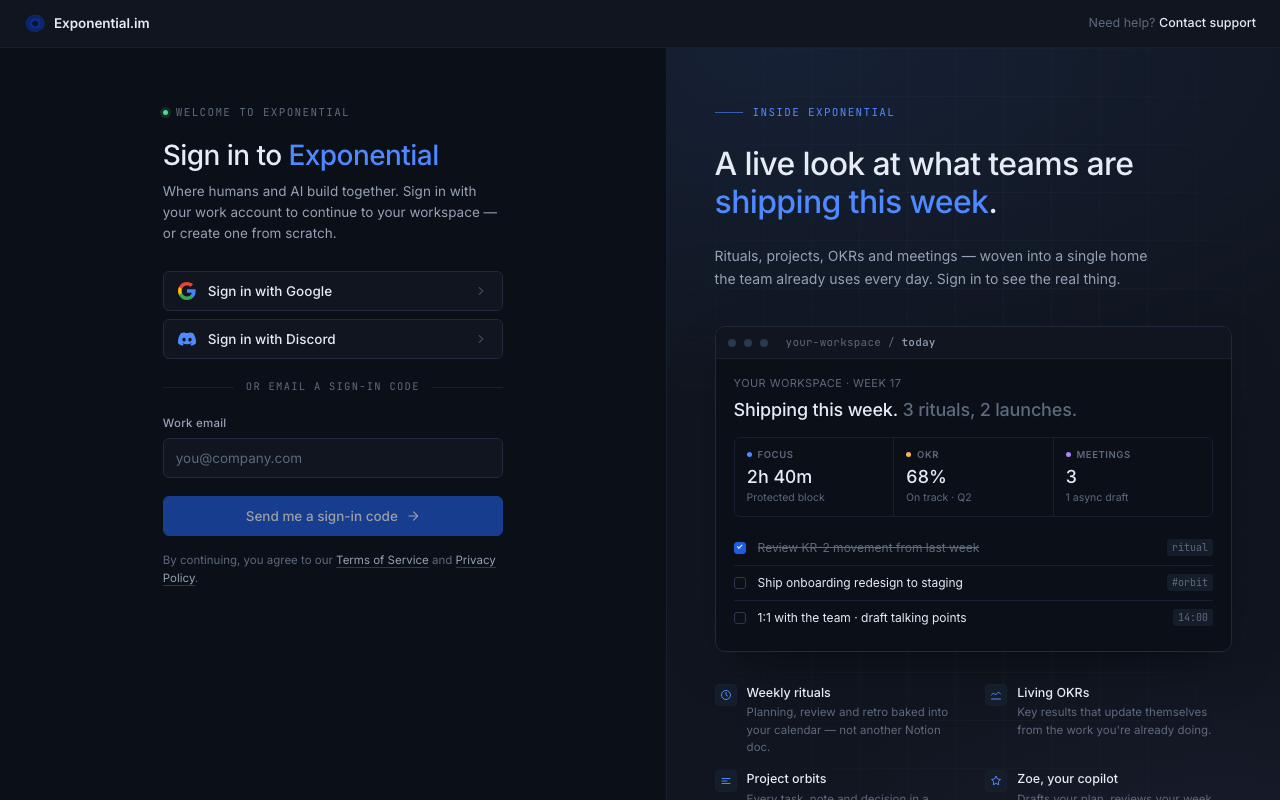
You land in your personal workspace. Every account has one; teams and clients get their own workspaces later.
2. Meet the sidebar
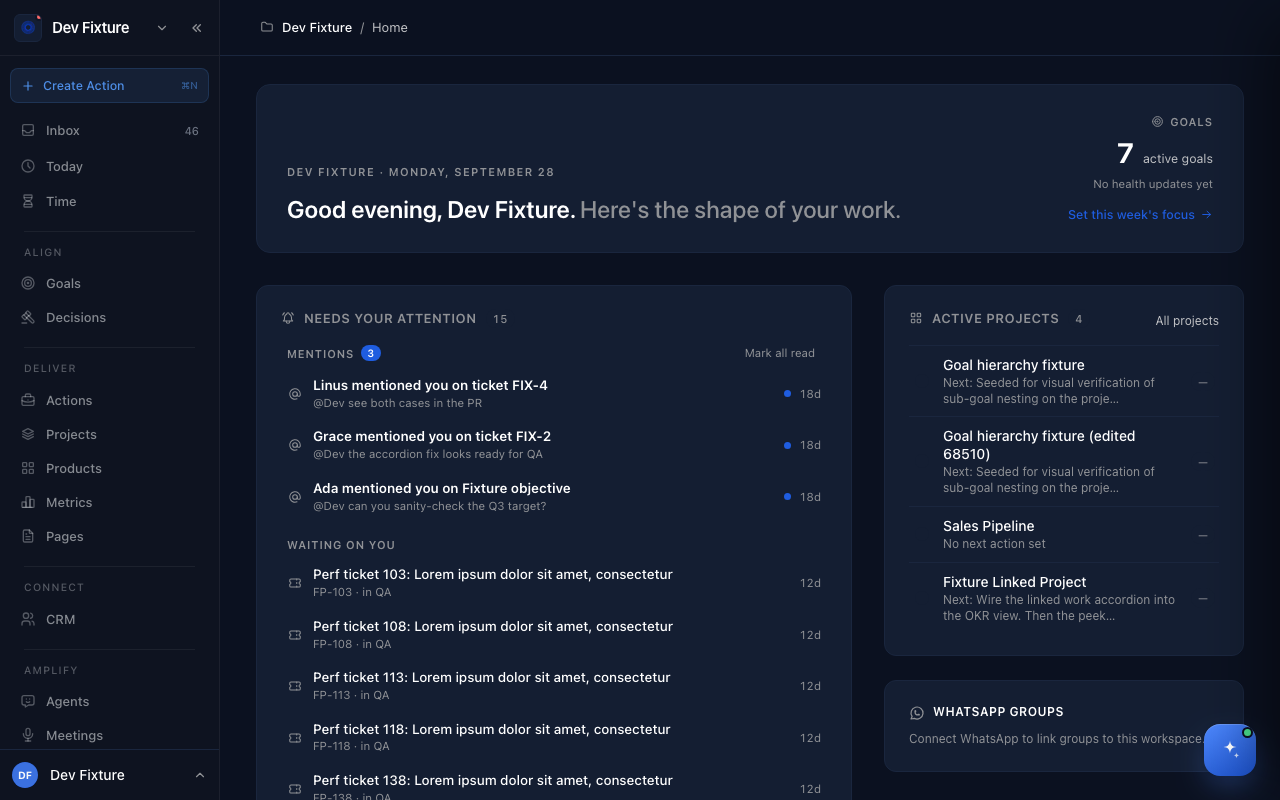
The sidebar has three items that are always there, then four sections:
| Item | What it is |
|---|---|
| Inbox | Actions with no project or date yet |
| Today | The actions due or scheduled today, with a timeline of your day |
| Time | Your timer and time entries |
| Align | Goals, Decisions |
| Deliver | Actions, Projects, Pages (plus Products and Metrics when the Product Management plugin is on) |
| Connect | CRM |
| Amplify | Agents, Meetings, Knowledge |
The workspace switcher is at the top; your user menu (Settings, Teams, Journal, Workflows and more) is at the bottom. You can rename, reorder and hide sections and items under Settings → Navigation.
3. Create a project
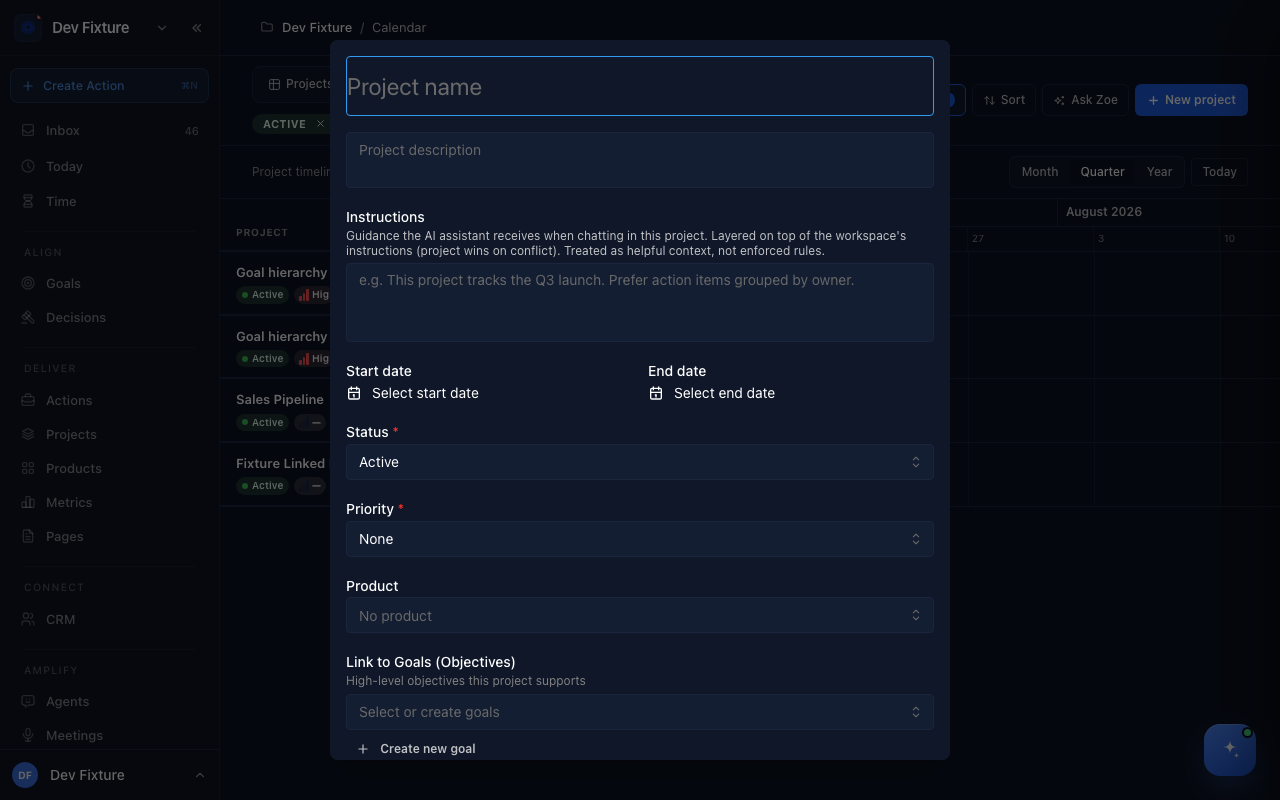
- Open Projects under Deliver in the sidebar.
- Click New project.
- Give it a name. Status defaults to Active; set a Priority if you like. Product, goals and dates are optional.
- Click Create Project.
4. Add three actions
- Press ⌘N (or click Create Action at the top of the sidebar).
- Type the action, for example "Draft the brief". Add a description if you want.
- Pick a priority (the first control, which defaults to Quick), set a Date if you like, and choose your project under Select a project.
- Click New action, then repeat twice.
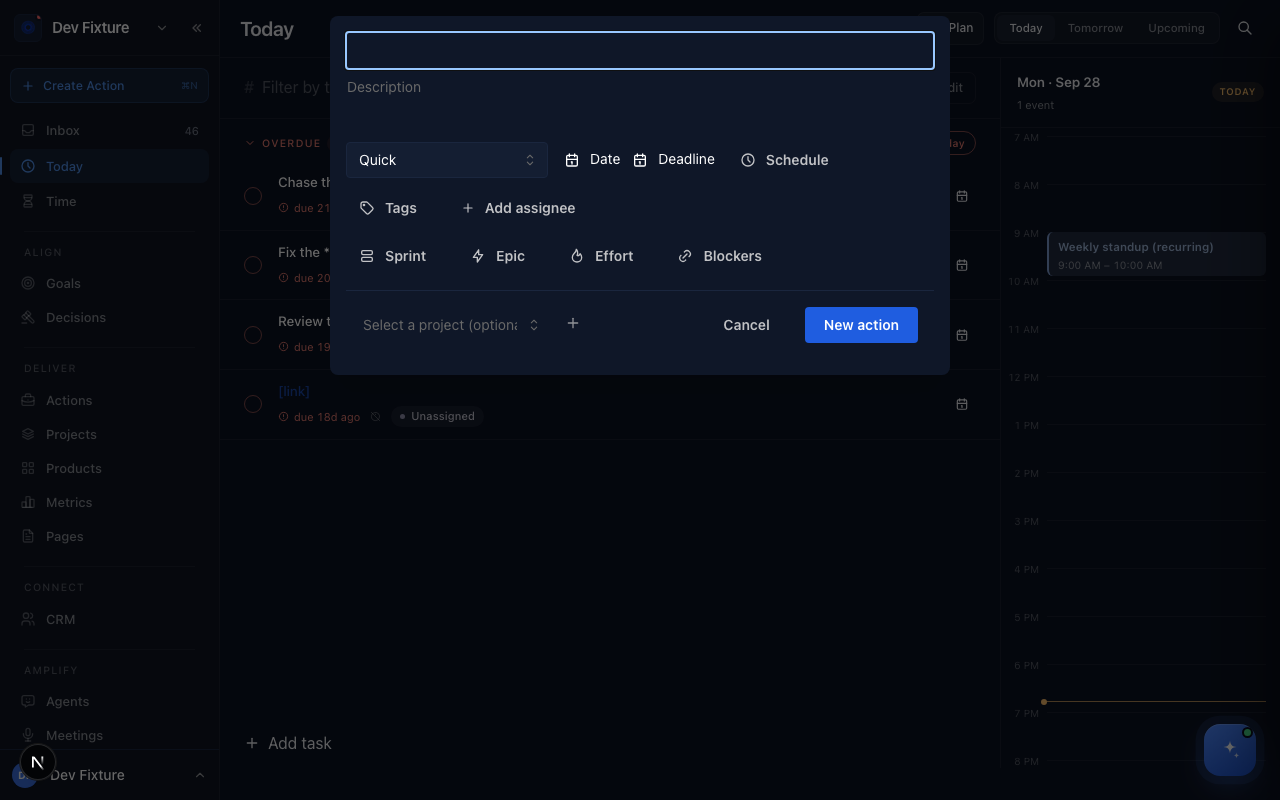
Actions without a project or date go to Inbox; you can file them later.
5. Plan today
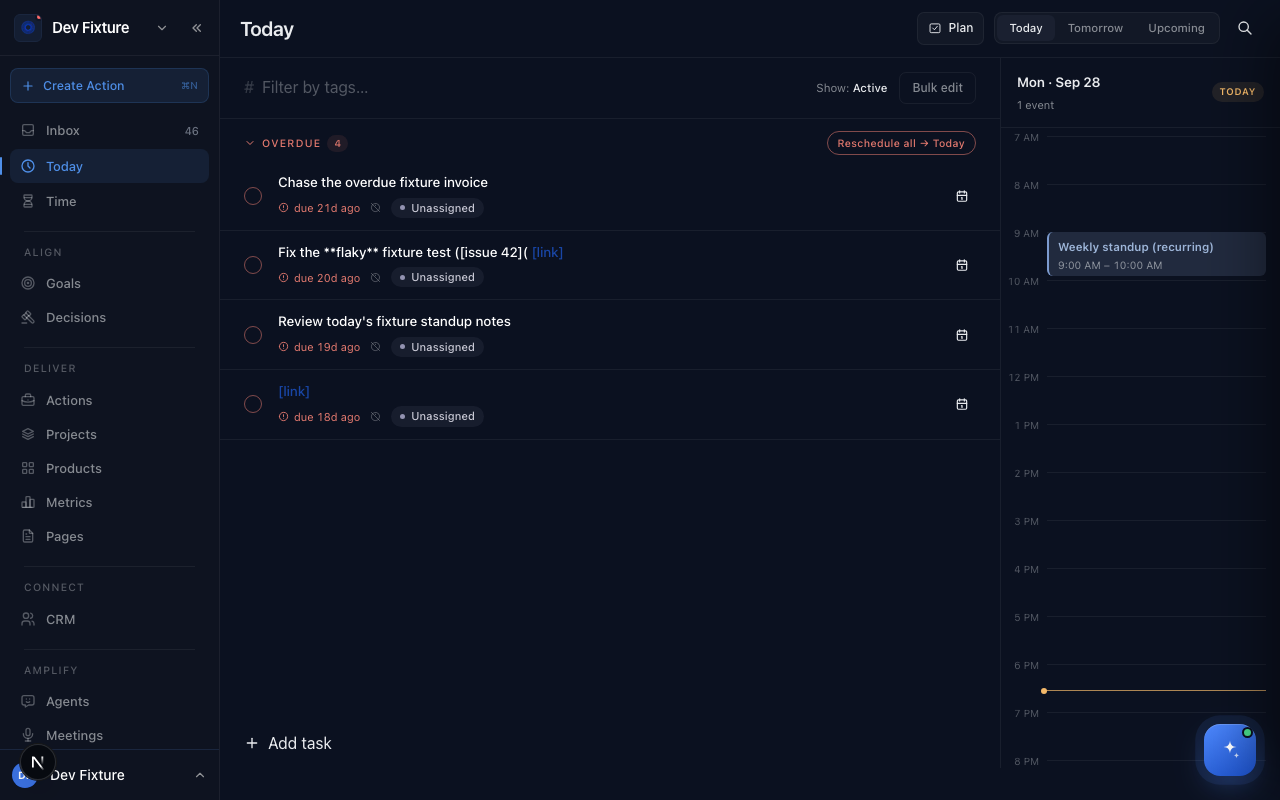
Open Today. Overdue actions sit at the top with a Reschedule all → Today button; the right-hand column shows your calendar for the day. Use Add task at the bottom to add something directly to today. Plan at the top right opens the daily plan, a short wizard that walks you through choosing the day's focus (you can plan today or tomorrow).
6. Ask Zoe one question
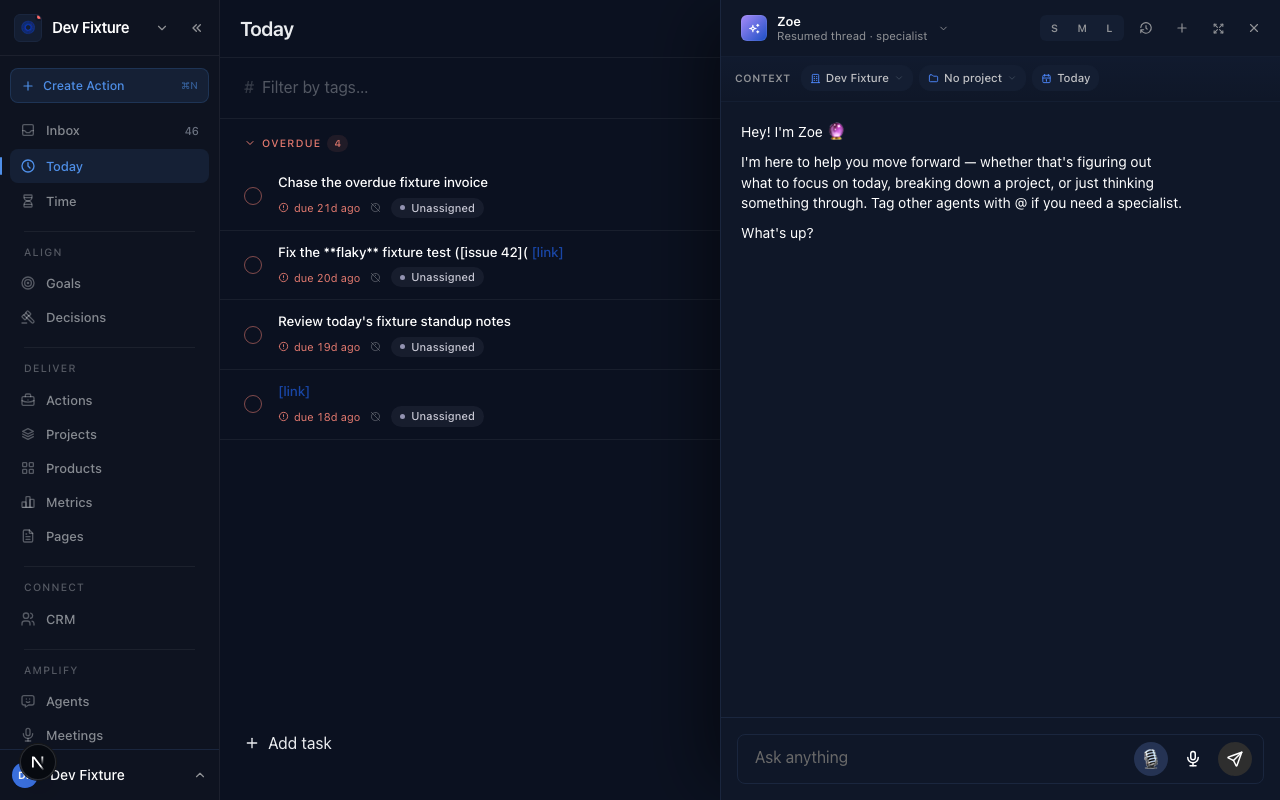
Click Ask Zoe · ⌘J at the bottom right of any page. Try "What should I focus on today?" or "Break the brief project into steps". Zoe answers in the drawer, can create the actions she suggests, and remembers the thread; New thread starts a fresh one.
The full chat page is Agents under Amplify in the sidebar. See Zoe.
7. Capture from anywhere
Pick one:
- iPhone, iPad or Mac: install the iOS shortcut to add actions by voice or text from anywhere.
- Browser: install the Chrome extension to capture from any tab.
- Phone, no install: add Exponential to your home screen as a mobile app.
Each of these needs an API key from Settings → API keys; the guides walk you through it.
Where next
- Bring your meetings in with Fireflies, then assign each meeting to a project to turn its action items into actions.
- Set a direction with Goals and link your project to one.
- Working with others? Create a team workspace: Workspaces.
- Every term you just met is defined in Concepts.
- The shortcuts worth learning on day one, ⌘K, ⌘N and ⌘J, are in Keyboard shortcuts.
FAQ
Which sign-in methods are there? Google, Discord and a work-email sign-in code on exponential.im. Microsoft appears on installations that have it configured. You can link Google, Discord and Notion to one account under Settings → Profile.
I typed an action but cannot find it. Actions without a date or project are in Inbox. Actions with a date appear on Today on that date and under Upcoming before then.
Can I use this on my phone? Yes: the web app works on phones, and the mobile app guide shows how to install it to your home screen.