
Notifications
Choose which notifications you get and where they go — push, email, Matrix, WhatsApp or Zulip
Exponential can notify you by push, email, Matrix, WhatsApp and Zulip. Push and email work out of the box; the chat channels are opt-in — connect one, then tick which notifications it receives. Assignments, mentions, due-date reminders, meeting and agenda updates, and your daily and weekly summaries are all configured on one page.
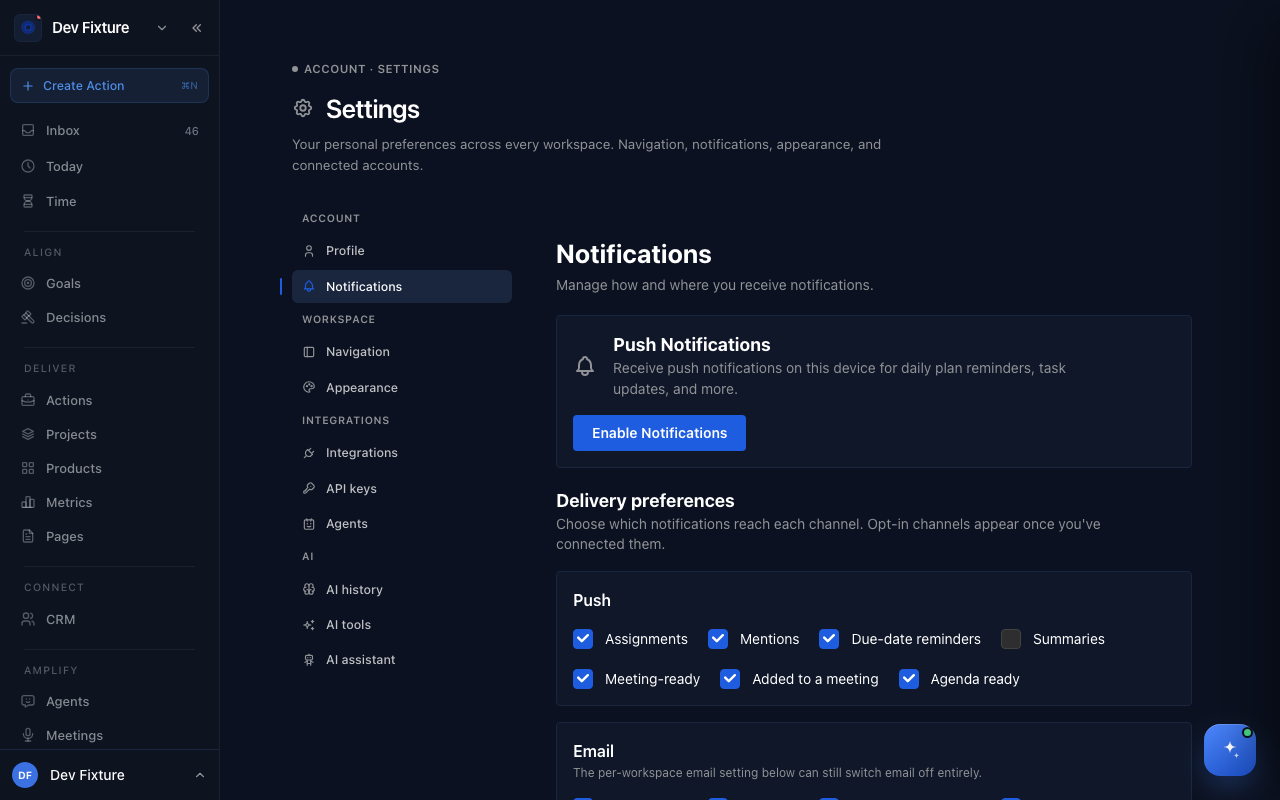
Where to find it
Open Settings → Notifications, or choose Settings from the user menu and click Notifications.
Notification types
| Notification | What triggers it | Default channels |
|---|---|---|
| Assignments | Someone assigns you an action | Push, Email |
| Mentions | Someone @mentions you in a comment on a ticket, feature, action or insight | Push, Email |
| Due-date reminders | 15 minutes, 1 hour and 1 day before an action you own is due | Push, Email |
| Summaries | Your daily and weekly digests, at the time you choose | |
| Meeting-ready | A meeting's notes and summary are ready | Push, Email |
| Added to a meeting | Someone adds you as a meeting participant | Push, Email |
| Agenda ready | A ceremony's agenda has been generated | Push, Email |
| Daily plan reminder | Every morning, with your action count for the day | Push only |
You are never notified about your own changes, and mentions only reach members of the workspace the comment is in.
How to choose where each notification goes
- Open Settings → Notifications and find Delivery preferences. There is one card per channel.
- In each card, tick the notification types you want on that channel. Changes save immediately.
Push and Email cards are always shown. Matrix, WhatsApp and Zulip cards appear only after you connect that channel, and start with everything unticked, so connecting a chat channel never starts pinging you until you ask it to.
How to enable push
- Under Push Notifications, click Enable Notifications.
- When your browser prompts, click Allow.
- Click Test to send yourself a test notification.
Push works on desktop Chrome, Firefox, Edge and Safari (macOS Ventura or later), on Android (Chrome or the installed PWA) and on iOS 16.4 or later as an installed PWA only. On a phone, install Exponential with your browser's Add to Home Screen option; a plain mobile browser tab may not receive push reliably.
Click Disable next to your active subscription to stop push on the current device only; disable each device separately if you enabled several.
How to turn email off for one workspace
Email is on by default for every type except the daily plan reminder. Untick types under the Email card, or switch email off for a whole workspace without touching the rest:
- Scroll to Email Notifications and find the workspace.
- Choose On, Off or Default.
Default follows what the workspace owner chose under the workspace's Features settings. A workspace set to Off here gets no email even if the Email card has the type ticked.
How to get notifications in Matrix
Notifications arrive as a direct message from the Zoe bot in any Matrix client (Element and others). Setup takes about a minute.
- Open Settings → AI assistant. If you have not set up your assistant yet, give it a name and personality and click Create Assistant first; the Matrix card needs it.
- In the Matrix card, enter Your Matrix ID (for example
@you:syntro.fi) and click Connect Matrix. - The bot invites you to a chat. Accept the invite in your Matrix client and send the pairing code shown in the app into that chat. The code expires after 10 minutes. The card shows Connected once pairing succeeds.
- Back on Settings → Notifications, a Matrix (Zoe DM) card now sits under Delivery preferences. Tick the types you want, such as Mentions, and click Send test to confirm a message arrives.
You keep getting emails too unless you untick them under the Email card.
Zulip and WhatsApp
These work the same way as Matrix: once your account is linked, the channel's card appears under Delivery preferences with every type unticked.
- Zulip — a workspace admin links your Exponential account to your Zulip user under the workspace's settings → Integrations → Zulip.
- WhatsApp — not self-serve yet. The card appears only if your phone number has already been linked to a workspace's WhatsApp integration.
Summaries
The Summary schedule card controls when digests go out. Which channels receive them is the Summaries tick under Delivery preferences.
- Daily summary — actions due today, what is completed and pending, overdue items and your top priorities, plus yesterday's time. Pick the Send at time.
- Weekly summary — completion rate, active projects and week-over-week progress. Pick the weekday; it goes out at the same time as the daily summary.
Times use the timezone on your profile. If you have not set one, times are read as UTC and the card offers to use your browser's timezone.
Due-date reminders
Reminders fire 15 minutes, 1 hour and 1 day before an action is due. They go to the action's owner: its assignees, or its creator if nobody is assigned. Completed or cancelled actions never trigger one. Choose the channels with the Due-date reminders tick under Delivery preferences.
How it connects
- Actions — assignments and due dates are what most notifications are about.
- Zoe — the Matrix DM that carries notifications is the same chat you talk to Zoe in.
- Workspaces — email can be switched off per workspace, and workspace owners set the default under Features.
- Time tracking — the daily summary includes yesterday's time and proposed entries.
FAQ
Why is there no Matrix card in Delivery preferences? You have not paired yet, or pairing did not finish. Check that Settings → AI assistant shows Connected.
Send test fails with "no paired Matrix DM". The bot lost your chat room, usually because you left it. Click Disconnect Matrix in Settings → AI assistant and pair again.
A mention did not arrive.
Only mentions made with the @ picker (or --mention in the CLI) notify anyone; a plain @name typed as text does nothing. You also need to be a member of the workspace the comment is in. Mentions in page comments are email and push only and do not reach Matrix yet.
The browser says "Notifications blocked". Your browser denied permission. Re-allow it from the lock icon in the address bar (Chrome and Firefox) or Safari → Settings → Websites → Notifications, then click Enable Notifications again. "Notification setup unavailable" and "Subscription failed" usually clear after a refresh.