
Workspace settings
Identity, members, teams, feature switches, integrations, plugins and ceremonies for one workspace
Workspace settings apply to everyone in the workspace: who is in it, which features and plugins are on, how effort is estimated, and which recurring meetings it runs. Owners and admins can change them; members can read them. Personal preferences live in Your settings.
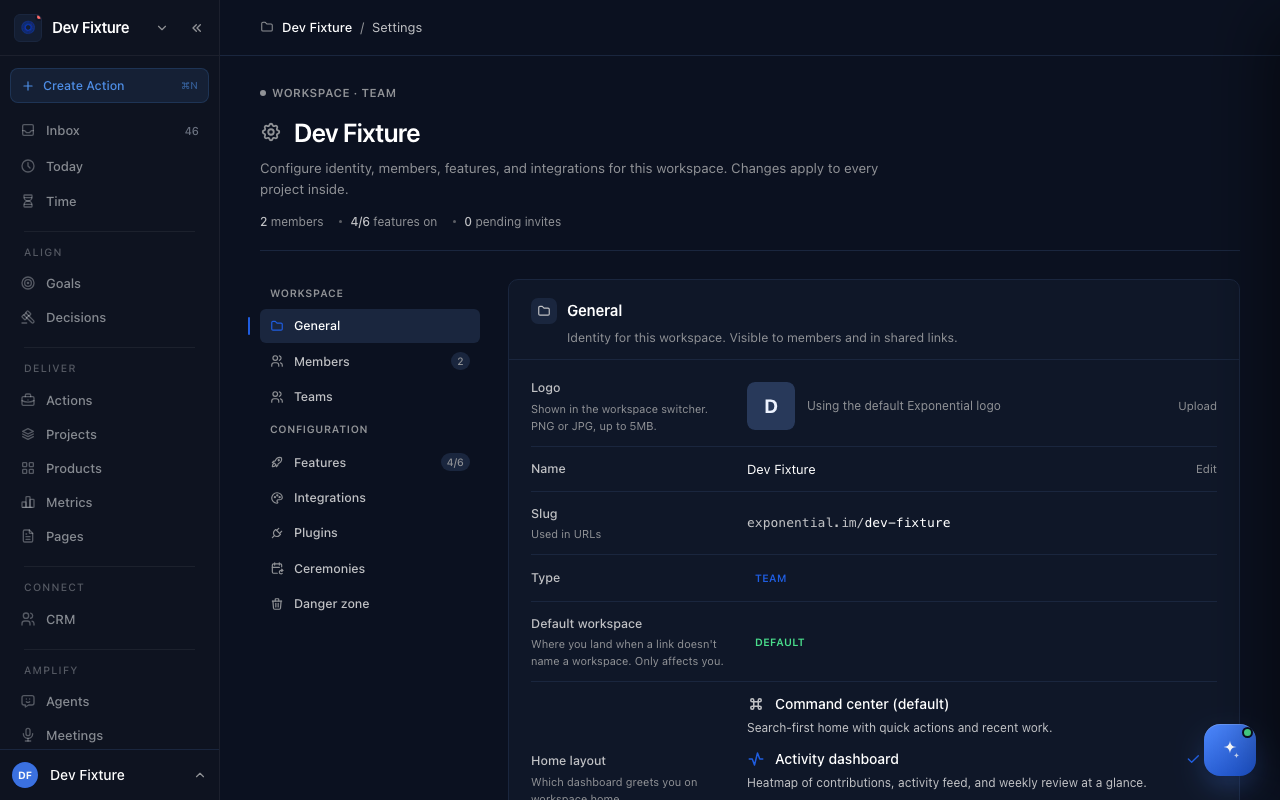
Where to find it
Open the workspace switcher at the top of the sidebar and choose the settings entry, or open /w/<workspace-slug>/settings. The tabs are General, Members, Teams, Features, Integrations, Plugins, Ceremonies and, for owners, Danger zone.
General
| Setting | What it does |
|---|---|
| Logo | Shown in the workspace switcher. PNG or JPG up to 5 MB. |
| Name and Slug | The slug is the workspace's part of every URL. |
| Type | Personal or Team. |
| Default workspace | Where you land when a link does not name a workspace. Personal to you. |
| Home layout | Which dashboard greets you on workspace home: Command center (search-first, quick actions, recent work), Activity dashboard (contribution heatmap, feed, weekly review) or Coaching (weekly focus, retro and commitments). |
| Description | Injected into every AI conversation in this workspace, so Zoe knows what the workspace is about. |
| Instructions | Guidance Zoe receives when chatting here (preferences, where your data lives). Context, not enforced rules. Projects can add their own on top. |
Members
Invite people by email with Invite member and set a role:
| Role | Can |
|---|---|
| Owner | Everything, including the Danger zone and changing roles |
| Admin | Manage members, settings, features, plugins and integrations |
| Member | Work in projects, goals and meetings |
| Viewer | Read only |
Guests are people with access to specific projects but no workspace role; they are listed here and managed from each project's Access tab. See Workspaces for restricted projects and guests.
Teams
Create teams of members to share projects and integrations with. See Teams.
Features
Switches that change product behaviour for the whole workspace. Members can override their own notification switches.
Advanced Action Features
Turns on epics, sprint assignment, effort estimates and dependencies on actions. Once on, the action dialog gains Epic, Sprint, Effort and Blockers controls; turning it off hides them without deleting anything. See Epics and Actions.
Effort Estimation
How the team sizes work, shown only when Advanced Action Features is on: Story Points (1, 2, 3, 5, 8, 13, 21), T-shirt Sizes (XS to XL) or Hours (in 30-minute steps). Changing the method does not convert existing estimates.
Other switches
| Feature | What it does |
|---|---|
| Detailed Action Pages | Full pages for actions with an activity thread, comments and a properties sidebar. Projects can override. |
| Bounties | Bounty rewards on actions in public projects. Projects can override. |
| Daily Plan Banner and Weekly Plan Banner | Reminders on the home page until the plan is done. |
| Email Notifications | Emails on assignments and mentions. Members can turn theirs off. |
| Auto-enrich Contacts | When a CRM contact is created, run a background search to fill in email, LinkedIn, bio and organisation. |
Integrations
The connections that belong to the workspace rather than to you, each on its own card:
| Card | What it does |
|---|---|
| Email Account | Which email address agents send from when operating in this workspace. |
| Postmark | Send the workspace's notification, CRM and broadcast emails from your own Postmark server and sender; unset means the platform default. |
| Slack | Link a Slack channel so Zoe has workspace-wide context, and route Slack Notifications (needs a Slack integration under your personal settings first). |
| Zulip | Send workspace notifications to a Zulip stream and direct-message people on assignments and mentions. |
| Matrix | Register your own Matrix homeserver so meeting summaries can be posted into your team's rooms; the bot posts only. |
| Sentry | File Sentry issues as Bug tickets in a product; generates the webhook URL and secret to paste into Sentry. |
| Notion | Default Notion account and sync direction (Pull from Notion, Push to Notion, Bidirectional) for the workspace's projects; projects can override. |
| Fireflies | Connect one or more Fireflies accounts for the workspace. |
Personal connections (your own Slack app, WhatsApp, Telegram, calendars, GitHub repositories) are on Settings → Integrations; see Integrations.
Plugins
Turn plugins on or off for this workspace: OKRs and CRM are on by default, Product Management is off. See Plugins.
Ceremonies
Define the workspace's recurring meetings once: cadence, participants, purpose, agenda template, and which projects each one reviews. Each date becomes an occurrence with its own agenda and captured outputs. See Ceremonies & occurrences.
Danger zone
Owners only: delete the workspace and everything in it. There is no undo.
How it connects
-
Members and access — roles, invitations and guests in detail: Members, roles & access.
-
Your settings — navigation, appearance, notifications and API keys are personal: Your settings.
-
Projects — several features (detailed pages, bounties, restricted access) can be overridden per project: Projects.
FAQ
I cannot change a setting. Only owners and admins can. Ask an owner to change your role under Members.
Does turning a feature off delete data? No. Estimates, epics and dependencies are kept and reappear when the feature is turned back on.