
Activity, views, timeline & favourites
Four ways to see the workspace as a whole: what happened, a board you shape with filters, projects on a calendar, and the things you pinned
Most pages show one object. These four show the workspace: the activity feed is everything that happened, newest first, with a week-in-review on top; Views is a kanban of every action you can filter, group and save as a list; the projects Timeline lays projects out by start and end date; and Favourites is your own pinned shortlist in the sidebar.
Where to find it
- Activity: the panel on the workspace home, the full page at Activity in the workspace (
/w/<slug>/activity), and Activity across all your workspaces. - Views:
/w/<slug>/views, reached from the Projects & Tasks view and the command palette's Tasks page. - Timeline: the Timeline tab at the top of Deliver → Projects.
- Favourites: the Favourites section of the sidebar, below the Amplify section.
How to read the activity feed
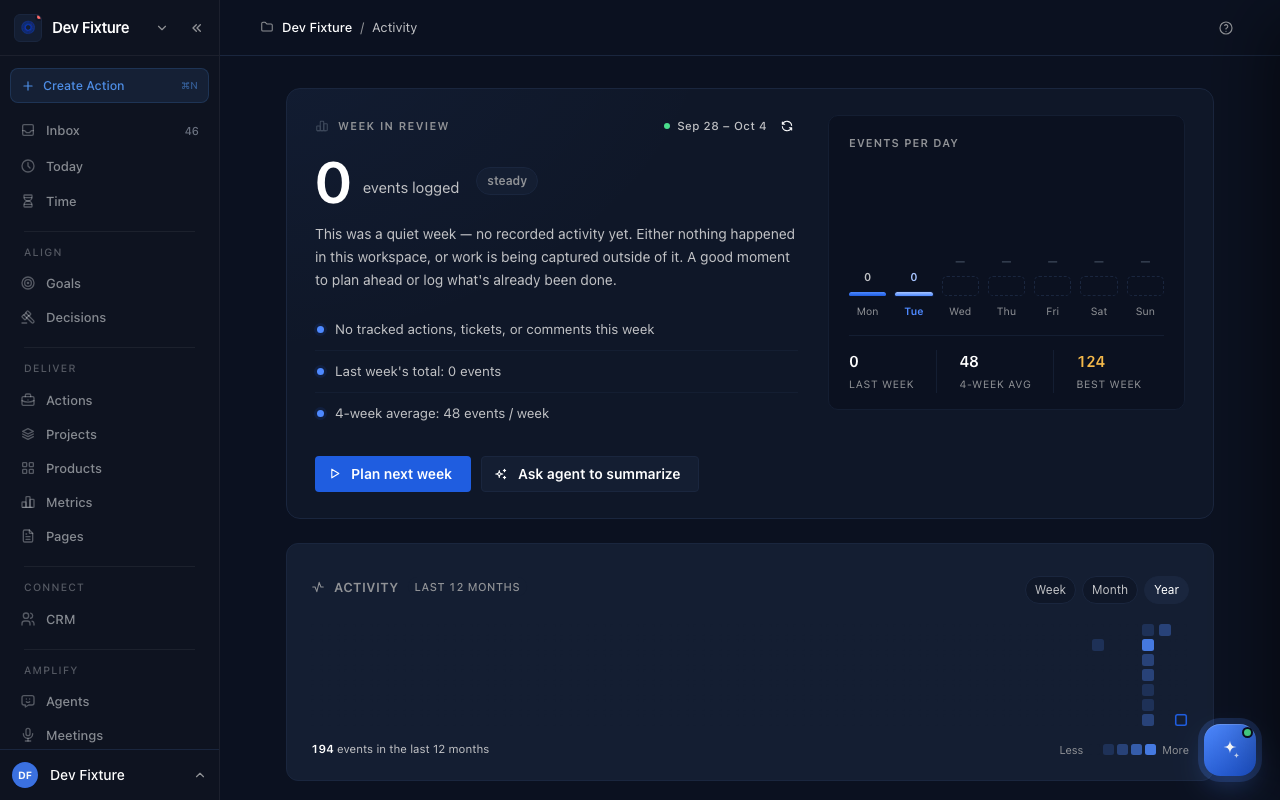
- Week in review summarises the week in a sentence, counts events against last week and the four-week average, and offers Plan next week and Ask agent to summarize; Regenerate narrative rewrites the summary.
- Events per day and the year heatmap (Week, Month, Year) show the rhythm; hover a day for its count.
- The feed lists every event: actions, tickets, features and comments created or changed, status changes, and summaries from watched chat channels (WhatsApp groups and the like), each with who did it and when. Events from GitHub are not in the feed yet; they appear on the Metrics page.
How to use Views
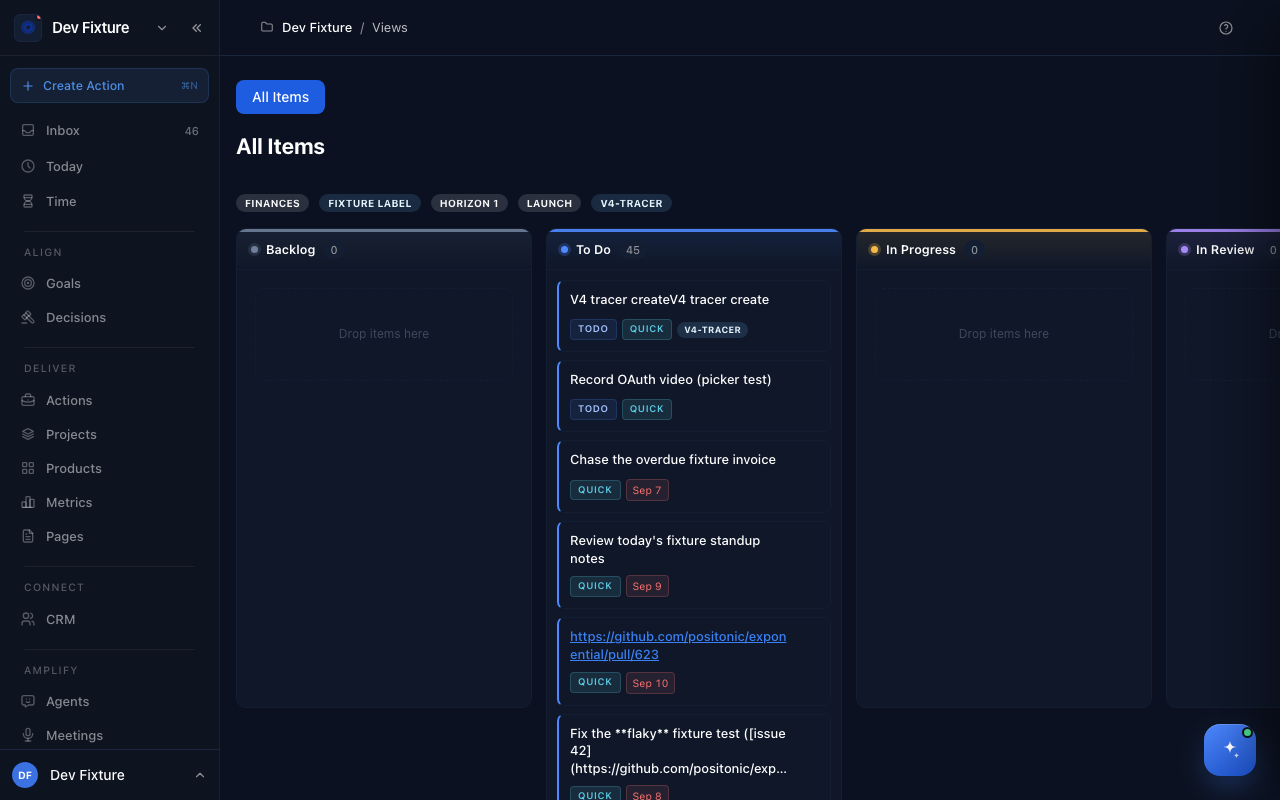
- Open Views. All Items is the default: every action in the workspace on a board with the columns Backlog, To Do, In Progress, In Review, Done and Cancelled.
- Click Show filters to narrow by Projects, Status, Priority, Lists and Tags, tick Include completed to see finished work, and change Group by to regroup the columns.
- Drag actions between columns to change their status; open an action's menu (⋯) to edit it in place.
- Create new list saves the current selection as a named list you can come back to; sprint lists are the ones the action dialog's Sprint control offers.
How to read the projects timeline
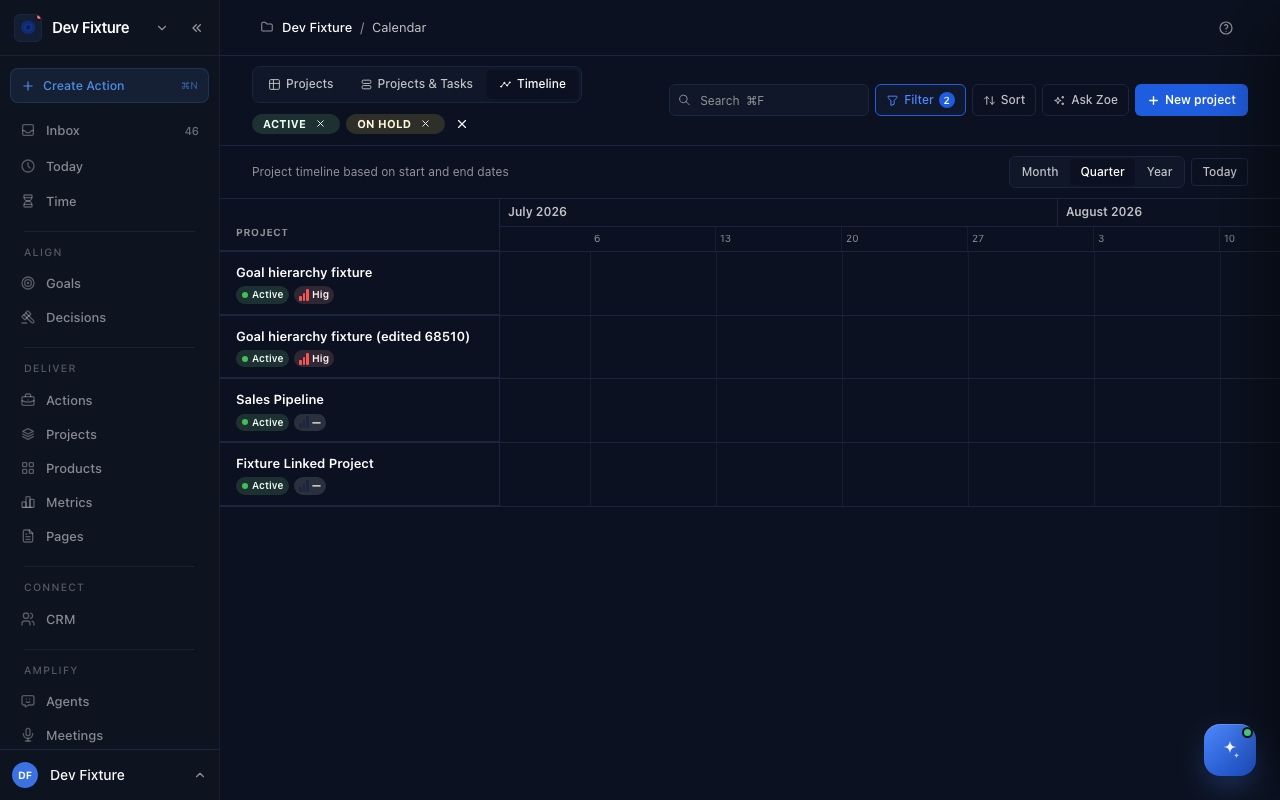
On Deliver → Projects, the Timeline tab draws each project as a bar from its start date to its end date, by Month, Quarter or Year; Today jumps to now. Projects without dates do not appear, so set them on the project. The status and priority filters from the Projects tab apply here too.
How to use Favourites
Click the star (Add to favourites) on an objective, a key result, a page or a product and it appears under Favourites in the sidebar for the current workspace. Favourites are yours, not the workspace's, and the star toggles them off again. Objectives and key results open in the OKR drawer; pages and products open their page.
How it connects
- Actions — what Views shows and reorders: Actions.
- Projects — the timeline's source of dates: Projects.
- OKRs — the objects Favourites was built for: OKRs.
- Metrics — where GitHub activity shows for now: Retrospectives, insights & metrics.
- Chat gateways — watched WhatsApp groups post their summaries into the feed: Chat gateways.
FAQ
The feed says this was a quiet week but we were busy. It counts events inside Exponential. Work done in tools that are not connected, or in another workspace, does not show; the cross-workspace Activity page adds every workspace you belong to.
Can I share a view? A saved list is visible to the workspace; the filters you have not saved are only in your browser.
Why is a project missing from the timeline? It has no start or end date.