
Fireflies Workflow
Automatically capture action items from your meetings using Fireflies.ai integration
Overview
The Fireflies integration connects your Fireflies.ai account to Exponential, enabling:
- Automatic import of meeting transcripts
- AI extraction of action items from discussions
- Association of meetings with projects
- Notifications when new transcriptions are ready
How It Works
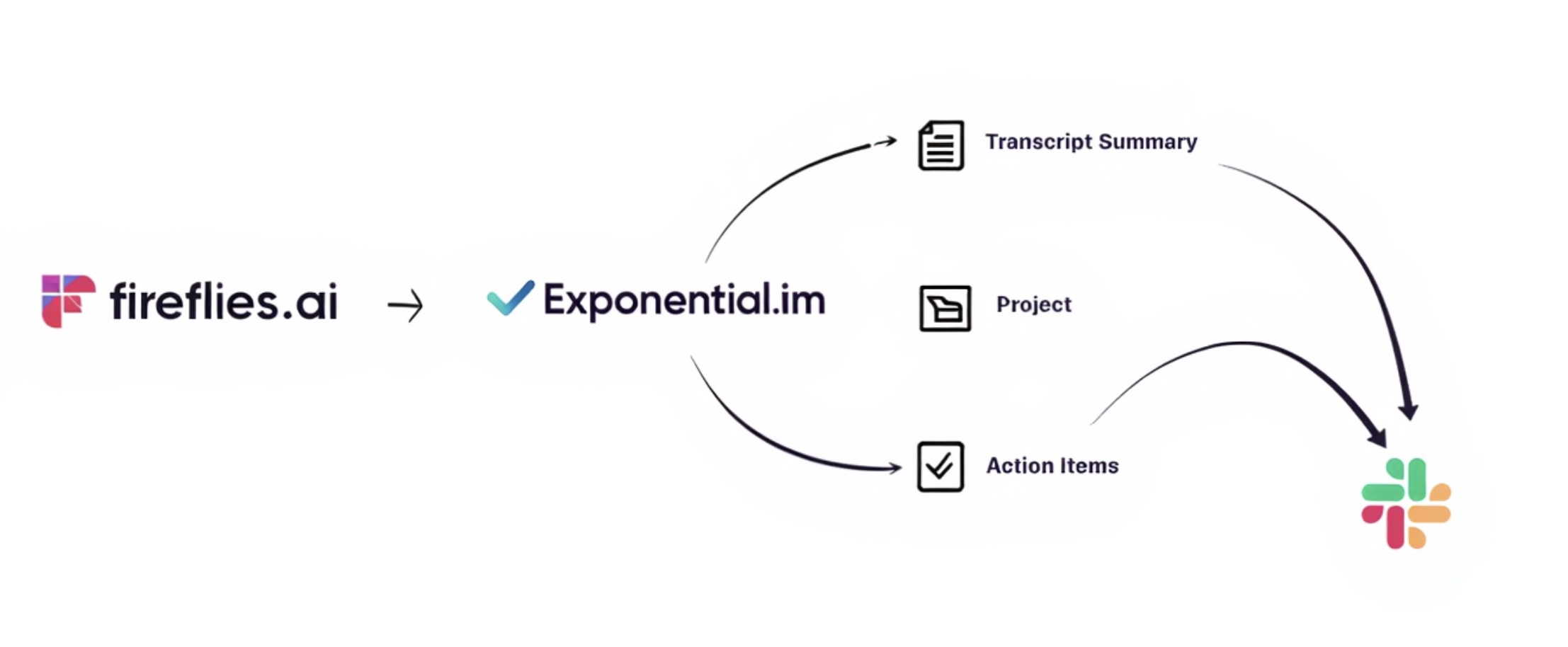
- Meeting Recorded - Fireflies records and transcribes your meeting
- Webhook Triggered - When transcription completes, Fireflies sends a webhook to Exponential
- Signature Verified - Exponential validates the webhook using your API token
- Transcript Fetched - Full transcript and AI summary retrieved from Fireflies API
- Session Created - Transcription saved with extracted action items
- Notification Sent - You're notified the meeting is ready for review
- Project Association - Assign the meeting to a project to process action items
Setup Guide
Step 1: Generate Webhook Token
- Go to the Workflows page in Exponential
- Click Setup on the Fireflies card
- Generate a webhook token (90-day expiry recommended)
- Copy and save the token - you won't be able to see it again!
Step 2: Add Fireflies API Key
- Get your API key from Fireflies Settings
- In Exponential, click Setup on the Fireflies card again
- Enter your Fireflies API key
- Click Create Integration
Step 3: Configure Fireflies Webhook
- In Fireflies, go to Integrations > Webhooks
- Add a new webhook with:
- URL:
https://www.exponential.im/api/webhooks/fireflies - Secret: Your webhook token from Step 1
- URL:
- Enable the "Transcription completed" event
What Gets Captured
| Data | Description |
|---|---|
| Full Transcript | Complete speaker-attributed transcription |
| AI Summary | Overview, topics, key points |
| Action Items | Extracted tasks and follow-ups |
| Meeting Type | Detected meeting category |
| Keywords | Key topics discussed |
Processing Action Items
Action items are extracted but not automatically created as tasks. This gives you control over which items become actual tasks.
To process action items:
- Go to the Meetings page
- Find your transcription
- Click Associate with Project
- Review and approve the action items you want to track
Troubleshooting
Webhook Not Receiving
- Verify the webhook URL is exactly:
https://www.exponential.im/api/webhooks/fireflies - Check that your token hasn't expired (default expiry: 90 days)
- Ensure Fireflies has the "Transcription completed" event enabled
Signature Verification Failed
- Your token may have expired - generate a new one in Exponential
- Ensure the secret in Fireflies matches your Exponential token exactly (no extra spaces)
Missing Transcription Content
- Your API key may be invalid - recreate the integration with a fresh key
- Check that your Fireflies API key has appropriate permissions
Security
- Webhook signature verification prevents unauthorized requests from reaching your account
- API keys are encrypted at rest in our database
- Tokens can be rotated without losing existing transcription data
Pairing with Slack Integration
Enhance your workflow by combining Fireflies with the Slack Integration to automatically notify your team when meetings are processed.
Automatic Notifications
When you associate a transcription with a project that has Slack configured:
- Meeting Summary - Key points and overview sent to channel
- Action Items - Extracted tasks with priority indicators
- Interactive Buttons - Quick links to view or create actions
Example Notification
Channel Routing
Notifications are sent based on your configuration:
| Priority | Configuration | Use Case |
|---|---|---|
| 1st | Project Channel | Project-specific updates |
| 2nd | Team Channel | Team-wide notifications |
| 3rd | User Default | Personal integration fallback |
Setting Up Slack Notifications
- Install the Slack app from the Integrations page
- Configure a Slack channel for your project in Project Settings
- When Fireflies transcriptions are associated with that project, notifications go to the configured channel
See the Slack Integration guide for complete setup instructions.